
Configure single number reach for a user
Single number reach is a mobility feature providing the following functionality:
- Receive calls on an alternate phone - Single number reach allows calls placed to a user’s office phone to ring any phone(s) set up with the feature. Most users designate their mobile phone for their single number reach phone.
- Place calls from an alternate phone - Users can place calls that display the outbound caller ID of their desktop phone from their single number reach phone.
- “Push” and “pull” active calls between desktop and mobile phones - When on an active call using a desk phone, users can push that call to their single number reach phone. Alternately, while on an active call on a designated single number reach phone, users can pull the call to their desk phone.
- Place long distance and international calls from an alternate phone - When users place long distance or international calls from a single number reach phone, usage is tracked and reflected on your invoice just as any other toll calls would.
Administrators can add a user's personal numbers as a single number reach. The added numbers ring when the user receives a call on their Webex Calling primary number. The user can use either the primary number or any of the added numbers to make outgoing calls. When the user makes outgoing calls, the caller ID setting of the Webex Calling primary number is used for identity.
To use the outbound calling options with external numbers, the single number reach group feature must be configured by an administrator first. For instructions, see Single number reach group feature.
- Log in to User Hub.
- Under Admin, in the left menu, select Users.
- Find and select the user you’d like to modify.
- Select the Calling tab.
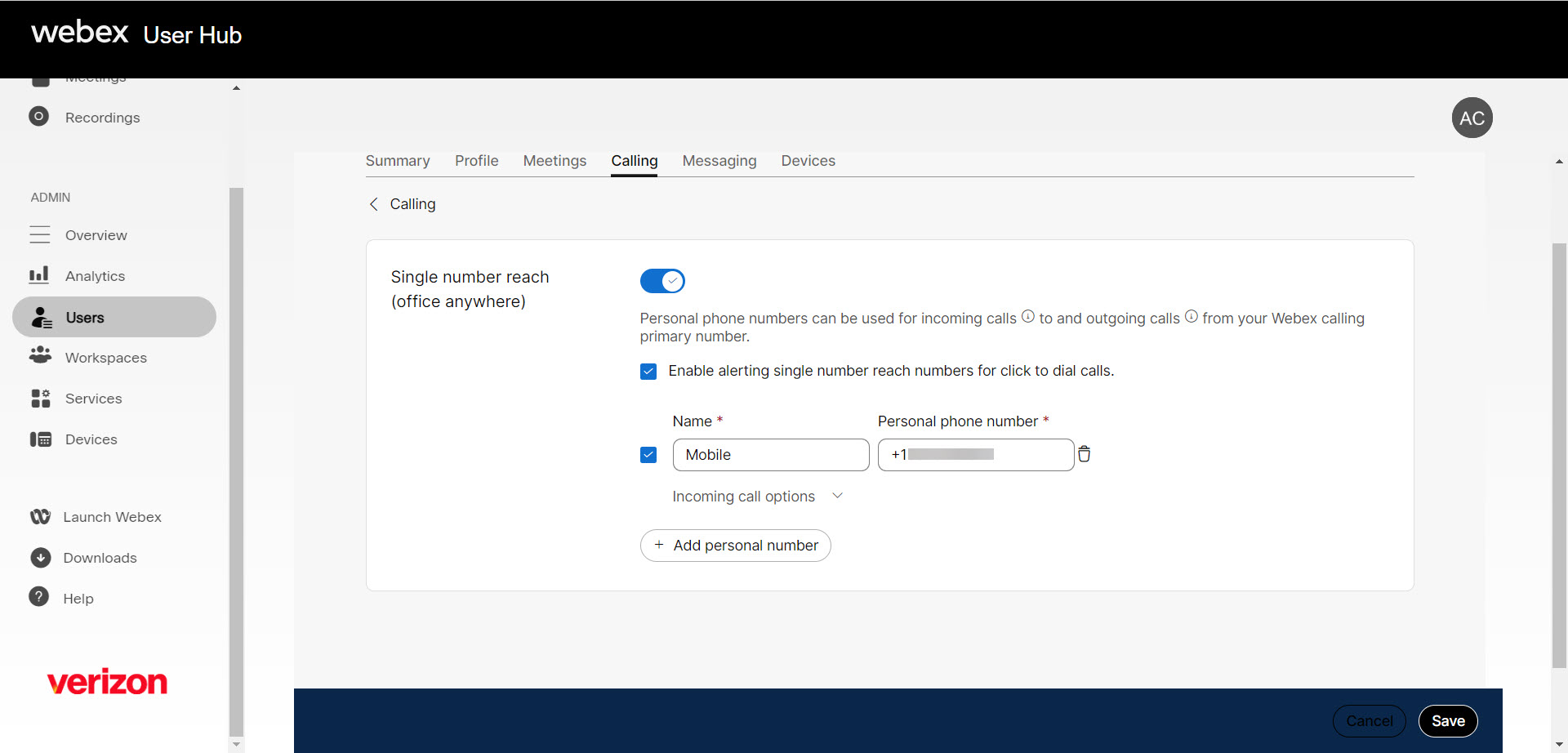
- Under User call experience, select Single number reach.
- Toggle on to enable.
- Enter the Name and Phone Number to be used as the user's single number reach number and select the check box. Once you've added a phone number, the number gets activated. To deactivate, uncheck the box next to the phone number.
- Click Incoming Call Options to enable any of the following settings for the phone number:
- Do not forward calls—User's calls aren't forwarded, even if the call forwarding is enabled. Note: This feature may not affect calls, as most phone systems ignore the "do not forward request."
- Answer confirmation—When someone calls the user, they're prompted to press a key before being connected. This option enables the callers to know that their call is automatically going to the single number reach (office anywhere) number.
You can also add another personal number by clicking Add Another Personal Number and then following the previous steps.
- Click Save.
A user can also configure and manage single number reach on their own in the User Hub. For more details, click here.
Use the single number reach group feature
Place a call from a personal number
To place a call from a personal number so it appears as your business number:
- From the phone set up as a personal number on SNR, call the SNR portal number.
- Enter your voicemail passcode, then press pound (#).
Note: If calling from a number not set up as a location TN, you will hear: "Please enter the number of which you are calling then press the pound (#) key." Enter the TN of the location you want to use, then enter your passcode. - Enter the TN or extension number you want to call, then press pound (#).
- The outbound call is placed and displays your business number on the caller ID.
Transfer a call from a personal device to a desk phone
To pull an active call from a personal number to an IP phone or ATA:
- From the IP phone or ATA, dial *11.
- The call moves to the IP phone or ATA and disconnects from the personal device.
Transfer a call from a desk phone to a personal device
To push an active call from an IP phone or ATA to a personal number:
- From the personal number device, call the SNR portal number.
- Enter your voicemail passcode, then press pound (#).
Note: If calling from a number not set up as a location TN, you will hear: "Please enter the number of which you are calling then press the # key." Enter the TN of the location you want to use, then enter your passcode. - Dial *11, then press pound (#).
- The call moves to the personal device and disconnects from the IP phone or ATA.
Place long distance or international calls from a personal device
To place a long distance or international call from a personal number so it bills to your account:
- From the phone set up as a personal number on SNR, call the SNR portal number.
- Enter your voicemail passcode, then press pound (#).
- Enter the long distance or international number you want to call, then press pound (#).
- The call is placed and billed to your account.

