
Set up and manage the single number reach feature
With single number reach (office anywhere), you can make, receive, and move calls to or from any device that you designate from your Webex Calling primary number. For example, you can take the call on the run by pushing or pulling the call to your mobile phone.
Single number reach (office anywhere) must be set up for your location by your administrator.
- Sign in to User Hub.
- Click Settings > Calling > Call Settings.
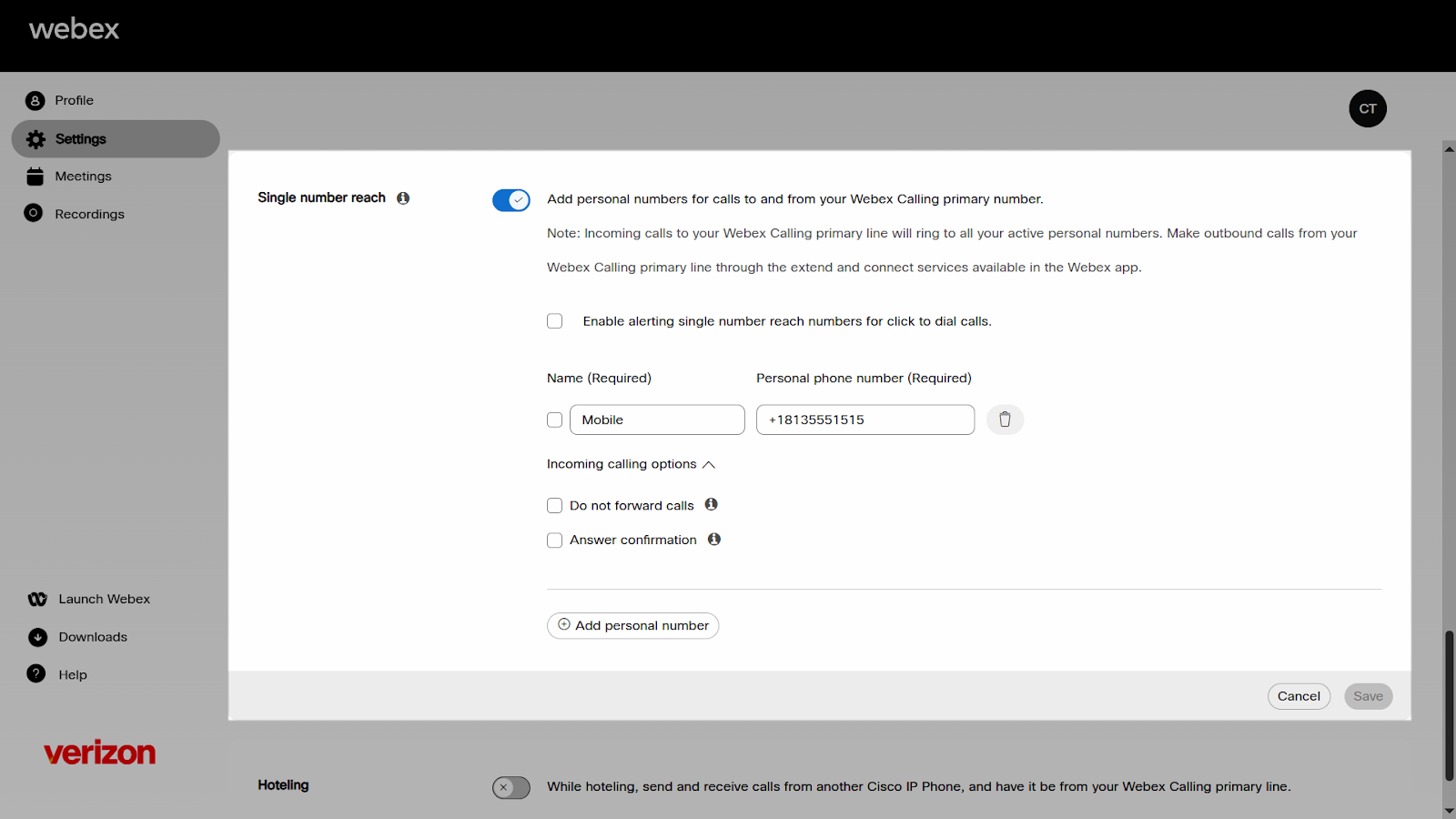
- Navigate to Single number reach and click the toggle button to enable it. To disable it, click the toggle button again.
- Select Enable alerting single number reach numbers for click to dial calls if desired.
- Enter the Name and Personal phone number. As soon as you add a phone number, the number is active. To deactivate, uncheck the box next to the phone number.
- Expand Incoming calling options to enable any of the following settings for this phone number:
- Do not forward calls—Your calls aren't forwarded, even if you have call forwarding enabled. Note: This feature may not affect calls, as most phone systems ignore the "do not forward request."
- Answer confirmation—When someone calls you, they're prompted to press a key before being connected. Use this option if you want your callers to know that their call is automatically going to your single number reach (office anywhere) number.
- Click Save.
You can add another personal number by clicking Add personal number. Follow the previous steps.
Use single number reach
Receiving calls
The single number reach feature supports receiving calls on alternate numbers using simultaneous ring.
- The default is for all inbound calls to ring on both the device(s) assigned and the Location/Personal Numbers set up, just like simultaneous ring.
- Inbound calls may not ring on the personal numbers if the Do Not Forward Calls is turned on.
- If turned on, a "do not forward request" is sent on the SIP Invite message.
- Most phone systems may not honor this message on the SIP Invite so this feature may not have an effect at all on the call.
- Inbound calls may not ring on the personal numbers if the Do Not Forward Calls is turned on.
- If a call is immediately intercepted by a voicemail system:
- When mobile phones are turned off or 1 of the numbers does not have service.
- When Do Not Disturb is turned on the user’s phone.
- Any number used on a Personal number cannot be included on other Simultaneous Ring or Personal number lists.
- Single number reach does not allow users to activate the Do not ring when on a call option that the simultaneous ring feature has to turn off call waiting.
Receiving calls with Single Number Reach configured:
Placing calls from the portal
The number reach feature supports placing calls from external numbers and devices using the single number reach portal number.
Note: The single number reach portal number needs to be set up for this option to work as mentioned on Group Feature.
Placing calls from a Location device:
Transfer call personal to phone
The Single number reach feature supports pushing or pulling calls between a personal number and the user’s devices with their service.
Note: The single number reach portal number needs to be set up for this option to work as mentioned on Group Feature.
To transfer a call from a Location device to an IP Phone / Analog Telephony Device (ATA):
Transfer call phone to personal
The single number reach feature supports pushing or pulling calls between a location/personal number and the user’s devices with their service.
Note: The single number reach portal number needs to be set up for this option to work as mentioned on Group Feature.
To transfer a call from an IP Phone / Analog Telephony Device (ATA) to a Location/Personal device:

