
Edit an auto attendant
An auto attendant routes calls to various destinations, including employees within your company, specific employee groups, voicemail, or other outside numbers. It provides callers with your company greeting and dialing menu options.
Note: If your order included an Auto Attendant, it has already been created in User Hub with a phone number assigned. Use the steps below to update its settings, such as its greeting, dialing menu, or schedule.
You can use an existing business hours and holiday schedule to configure the time/days your auto attendant is operational and non-operational, or create a new schedule when you create an auto attendant. To configure your business hours and holiday schedules in advance of creating an auto attendant, see Manage time schedules for more information.
- Log in to User Hub.
- Under Admin, in the left menu, select Services.
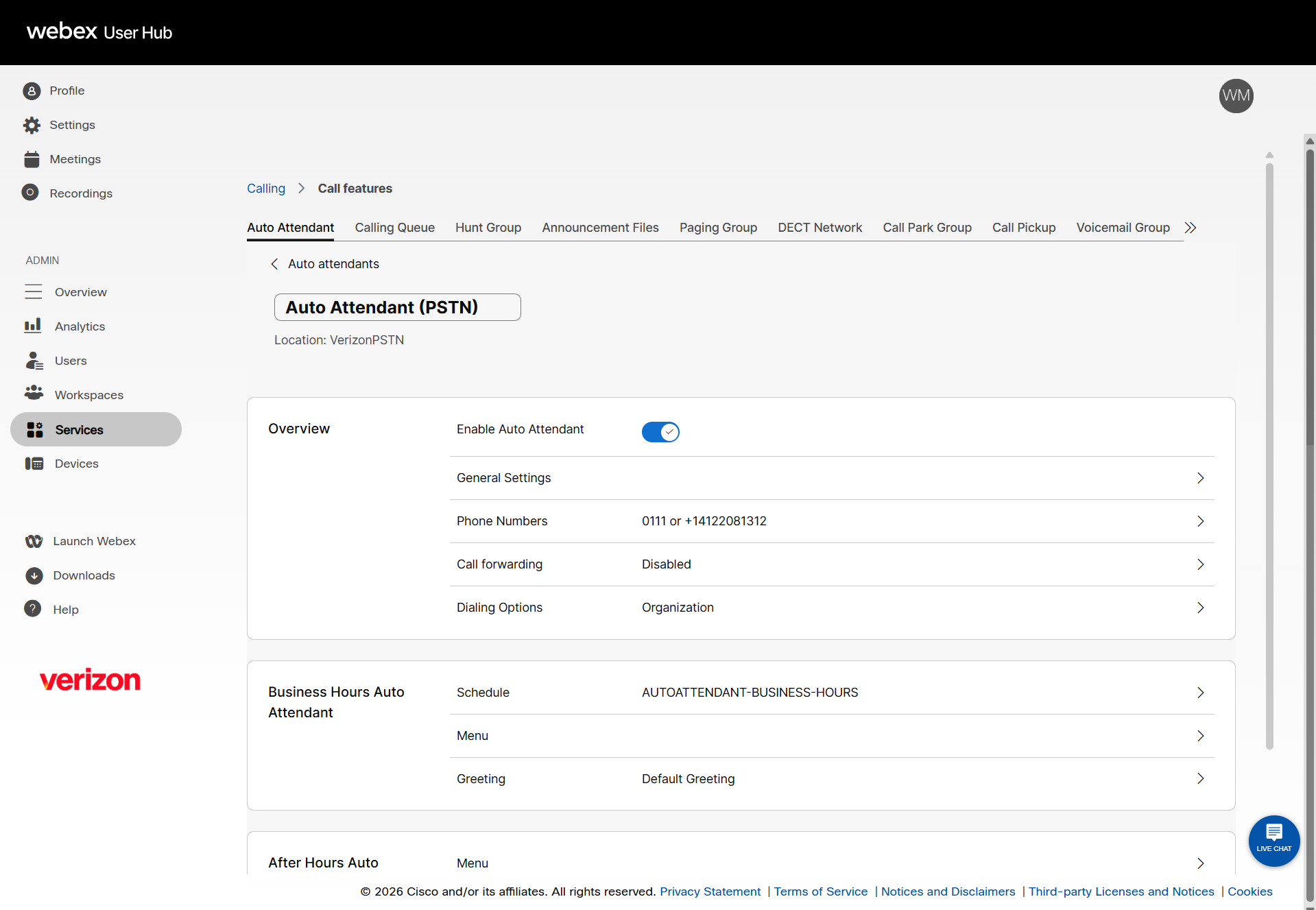
- Select Call features and then the Auto Attendant tab.
- Choose the existing auto attendant you want to update.
- To edit the name of the auto attendant, click the name field. Modify as desired and click Save.
- Use the toggle to enable or disable the auto attendant.
- You can modify additional Overview settings as desired. After updating each section, click Save, then return to the Auto Attendant Overview page.
- Overview settings include General Settings, Phone Numbers and extensions, Call forwarding, and Dialing Options.
- The following settings can be configured for the Business Hours Auto Attendant, After Hours Auto Attendant, and Holiday Auto Attendant. After updating each section, click Save, then return to the Auto Attendant Overview page.
- Assign or create a schedule.
- Determine the dialing Menu options and set the menu timeout and repeat configuration.
- To allow callers to dial an extension without a menu prompt, check the box next to Enable extension dialing without requiring a menu item.
- Use the drop-down menu to assign each keypad number a function. Options include:
- Not used - This is the default when an action has not been selected for that digit or character.
- Play announcement - Use this functionality to select, upload, or record an announcement at the location or at the organization level and play the same.
- Transfer call with prompt - This action routes callers to a phone number that is not a user or extension within the company. For example: A third-party answering service or corporate call center. With this option, callers will hear a prompt telling them that they are being transferred.
- Transfer call without prompt - This action routes callers to a phone number that is not a user or extension within the company. For example: A third-party answering service or corporate call center. With this option, callers will not hear a prompt telling them that they are being transferred.
- Transfer call to operator - This action redirects callers who do not choose an option from the auto attendant dialing menu (or “time out”) to a configured operator. If you chose to enable this action, enter the phone number to which to route callers. Note: This action must be assigned to a key before the “time out” function is supported. When enabled, the caller will be transferred to the configured number when the key assigned is pressed or if no keys are hit after 10 seconds, which is the “time out” period.
- Transfer call to voicemail - This selection places callers directly into the voicemail box of the phone number or extension entered.
- Dial by name - This action permits callers to dial by recipient name, using the letters on the keypad.
- Dial by extension - This action lets callers dial by recipient extension, using the numbers on the keypad.
- Repeat menu - If selected, this action will repeat the greeting and menu options.
- Exit menu - This action allows callers to exit the menu system. This will terminate the call.
- Select the options for menu timeout and repeat configuration when there is no input or when there is an invalid input from the caller:
- No input timer - Enter the number of seconds the system will wait for the caller to provide input (60-second maximum).
- Repeat on no input - Choose to repeat 1-3 times, or not repeat if there is no input from the caller.
- Action after all repeat attempts - Choose an action.
- Message settings - Select play default or custom message. If choosing custom, upload a .WAV file.
The following will happen when zero (0) is, or is not, set up when a caller calls into the auto attendant:
- If zero (0) is set up and the caller dials zero (0), the action is performed as assigned.
- If zero (0) is not set up and the caller dials zero (0), nothing happens and the call is disconnected.
- If zero (0) is set up and the caller does nothing, after several seconds, the following message is played: “Your call cannot be transferred. Please try again later.”
- If zero (0) is not set up and the caller does nothing, the call is simply disconnected.
- Manage the Greeting that plays. You can choose to play the default greeting, upload an audio recording, or record your own greeting. See Create and manage announcement files for more information.
Need an additional auto attendant? If your organization requires a new, separate auto attendant beyond the one created with your order, select Manage > Add on the Auto Attendant page and follow the on-screen setup wizard (Basics, Schedules, Menu, Greeting) to create it.

