
Configure features for the Yealink T42S phone
This guide covers the features and functions of the Yealink T42S phone.
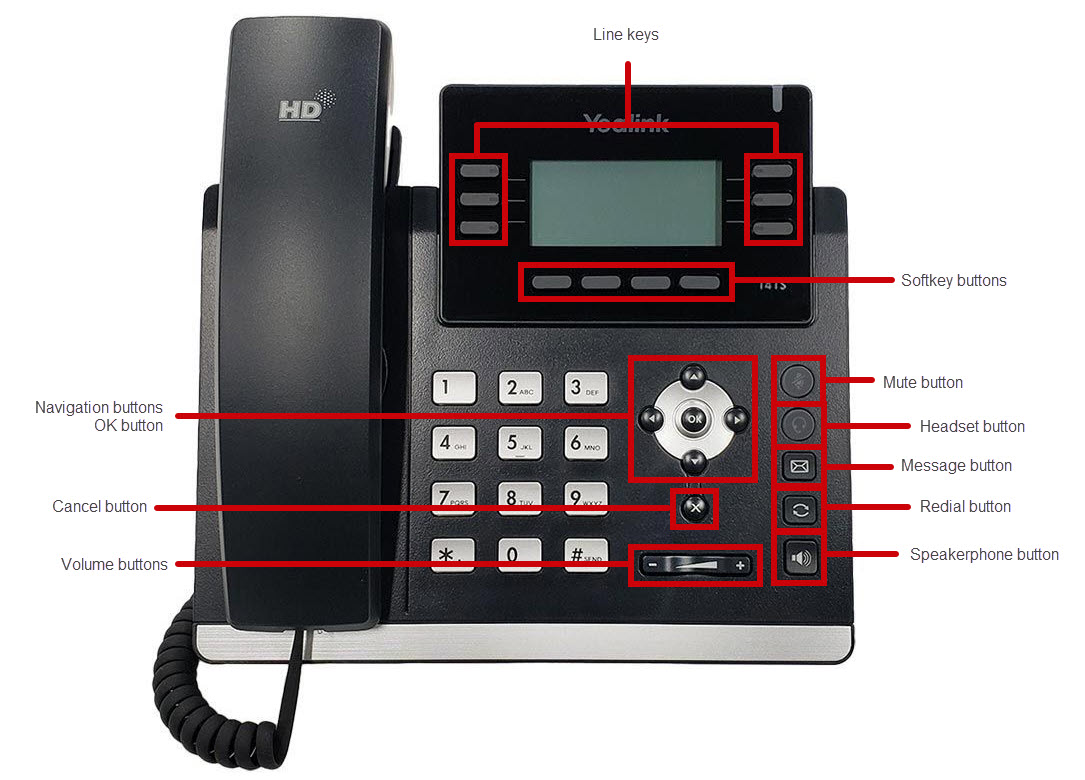
Function buttons
These buttons are key to many of the feature processes of Yealink T42S phone:
- Navigation cluster - The navigation cluster is the circular buttons in the middle of your phone. Press up or down to scroll through the options, lists, and menus. Press the center button to select the highlighted item.
- Softkey buttons - The softkey buttons, located beneath the main display are used to perform various functions that appear directly above them. The softkey functions may change to support your current activity. For example, when you’re on a call, the softkey functions help you manage that call.
- Line keys - The line buttons indicate the status of your lines and calls. The backlighting lets you know whether a line is:
- Idle
- Ringing
- In Use
- On Hold
Make and receive calls
Place a call
- To place a call using the handset:
- Pick up the handset.
- Press the Speakerphone key.
- Press the Headset key.
- Enter the number, and then press the Send soft key.
During a call, you can alternate between the Headset, hands-free speakerphone, and handset modes by pressing the headset key, the speakerphone key, or by picking up the handset. Headset mode requires a connected headset.
Answer a call
You can answer an incoming call in three different ways:
- Pick up the handset.
- Press the Speakerphone key.
- Press the Headset key.
Reject a call
You can reject an incoming call by pressing the Reject softkey.
End a call
To end a call using the handset, hang up the handset or press the End Call softkey.
Auto Answer
Auto Answer is a CPE-only feature available on all Yealink or Poly phone models to automatically answer an inbound call.
The following apply to this feature:
- Auto Answer is turned off by default.
- When turned on, inbound calls are answered automatically:
- On speakerphone or on the headset connected after 1 ring when using desk and conference phone models
- When you pick up the phone from the charging cradle when using the Yealink cordless phones
- The Auto Answer feature can only be managed directly on the phones; there are no portal configuration options.
To configure auto answer on Yealink Desk and Conference Phones:
- Press Menu.
- Select Features.
- Select Auto Answer.
- Two options display:
- Line ID - If you have more than 1 number assigned, this option allows you to select which number to manage.
- Status - Toggle to enable or disable.
- Two options display:
- Press Save.
Speed dial
Direct Station Selection (DSS) keys on Yealink desk and CP925 phones allow you to program speed dialing for any line key slot that is not assigned to a phone number or monitored lines.
To program DSS Keys as a Speed Dial on Yealink Phones:
- Perform one of the following methods to select the DSS Key Program:
- Press down on the Line Key that does not have anything setup on it from the main screen to open the Dsskey menu for that line key option.
- From the phone, navigate to Menu > Features > Dsskey > pick the Line Key that you want to program the speed dial on.
- Update the options on the Line Key page to the following:
- Type: Change to Speed Dial
- Account ID: Pick which line you want the Speed Dial to dial out from. The default is Line 1.
- Label: Enter the name that will display for the Speed Dial on the DSS Key.
- Value: Enter the phone number or extension number for the Speed Dial to dial out to.
- Select Save.
Use the DSS Key configured as a Speed Dial:
- Press the button next to the DSS Key that the speed dial is programmed on.
Enable calling functions
Place and resume a call on hold
To place a call on hold, press the Hold softkey during an active call.
To resume the call, do one of the following:
- If there is only one call on hold, press the Resume softkey.
- If there is more than one call on hold, press the Up or Down arrow to select the desired call, and then press the Resume softkey.
Initiate a conference call
Initiate a conference call, while on an active call:
- Press the Conf softkey during an active call. The call is placed on hold.
- Enter the number of the second party, and then press the Send softkey.
- Press the Conf softkey again when the second party answers. All parties are now joined in the conference.
- Press the End Call softkey to disconnect all parties.
You can split the conference call into two individual call by pressing the More softkey, followed by the Split softkey.
End a conference call
To end a three-way call:
- Hang up the phone.
Enable do not disturb
To enable Do Not Disturb:
- Press the Do Not Disturb (DND) softkey.
When Do Not Disturb is enabled, all incoming calls will be diverted to voicemail or to your call forward no answer destination number. To disable Do Not Disturb, press the Do Not Disturb softkey again.
Enable call forwarding
To enable call forward:
- Press the Menu softkey.
- Use the navigation keys to locate and select Features.
- Select Call Control.
- Next, select Call Forwarding.
- Press the Enter softkey.
- Select you call forwarding option from:
- Always Forward
- Busy Forward
- No Answer Forwarding
- When your option is selected, press the Enter softkey.
- To enable, press the Switch softkey.
- Press the down navigation button and enter the valid extension or phone number.
- When complete, press the Save softkey.
The display shows that the line is forwarded to that destination number.
To disable your call forwarding option, repeat the steps and switch to disable.
Transfer a call
Blind transfer
To transfer a call to another person without talking to them privately about the caller beforehand.
While on an active call:
- Press the Transfer softkey.
- Enter the valid 10-digit phone number.
- Then press the Blind Transfer softkey.
Consulted transfer
To talk privately about a call before transferring:
- While on an active call, press the Transfer button or Transfer softkey.
- Enter the phone number and press the Call softkey. The first call will be automatically placed on hold and the destination party’s phone will ring.
- When the destination party answers, you can talk privately about the call before transferring.
- To complete the transfer, press the Transfer button or Transfer softkey again.
Direct Transfer to voicemail
To transfer a call directly to another user’s voicemail without ringing their phone, while on an active call:
- Press the Transfer softkey.
- Dial *55 followed by the extension you would like to transfer the call to.
- This completes the transfer to voicemail.
Park and retrieve calls
Call Park is a shared hold that allows you to “park” a call on one phone and retrieve it on another phone. For example, if you receive a call from a customer with a question about their archived file, you can park the call and retrieve the call from the file room phone to answer their account questions.
To park a call:
- Press the More options softkey.
- Press the Park softkey. *68 will automatically be dialed.
- Enter the extension where you would like to park that call against or press # (pound) to park the call against your own extension.
To retrieve a parked call from any phone:
- Press More options softkey.
- Press the Retrieve softkey.
Enter the extension in which the call was parked. If parked against you own extension, press # (pound).
Call park direct
Initiate parking a call using call park direct in three different ways:
- Star Code
- Park soft key on Poly and Yealink Desk/Conference phones
- Call Park Option on Yealink Cordless Phones
To park a call using star codes:
- Put the active call on hold.
- Initiate a new call while the call is still on hold, then dial *68.
The call park feature asks where to park the call. - Perform the appropriate action:
- Press # to park against the extension the call is currently on.
- Enter the extension number of the user or the full 10-digit phone number to park the call against a different number.
The caller hears the normal hold music, and the call is placed on hold.
The call is no longer on the phone or the number the call was on.
Note: If a parked call does not get retrieved before the recall time, the call is recalled based on the settings set for recall. Recall settings are configured in the portal; refer to call park settings below.
To park a call using the park soft key on Poly / Yealink desk or conference phones:
- Put the active call on hold.
Note: Refer to call hold, pull, transfer, and conferencing for instructions on how to put the call on hold.
- Select the more soft key option.
- Select the park soft key option.
Note:
When using the park soft key on Poly phones:
- Enter # on the call park page that asks for the number.
- Press the Enter soft key to dial *68 for call park.
- Examples of the Park soft key:
- Yealink T54W
- Yealink T54W

- Yealink T33G
- Yealink T33G
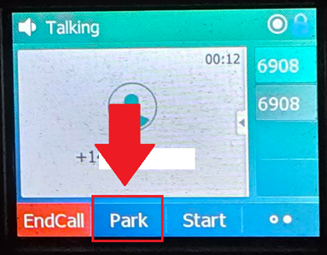
The Call Park feature asks where to park the call.
4. Perform the appropriate action:
- Press # to park against the extension the call is currently on.
- Enter the extension number of the user or the full 10-digit phone number to park the call against a different number.
The caller hears the normal hold music, and the call is placed on hold. The call is longer on the phone or the number the call was on.
Note: If a parked call does not get retrieved before the recall time, the call is recalled based on the settings set for recall. Recall settings are configured in the portal; refer to call park settings below.
To pick up a parked call:
- Dial *88 from any phone.
The Call Park Pickup feature asks where to retrieve the parked call from. - Enter the extension number of the user or the full 10-digit phone number where the call was parked.
- Press #.
The call transfers to the phone that dialed *88 from.
Access your call history
To access Call History for placed, answered, and missed calls:
- Press the Menu softkey.
- Use the navigation keys to locate and select History.
- You can move through the following lists using your right and left navigation keys:some text
- All calls,
- Missed Calls,
- Received Calls
- Placed Calls.
To place a call, scroll to the desired number and press the Call softkey.
To immediately place a call to a most recently missed call, press the Call return softkey.
This key will only be visible if you recently missed a phone call and if the Missed call shortcut feature is set to On. You may check this setting by selecting the Information and Settings button, User Preferences then Call Preferences.
Retrieve your voicemail
To access your voicemail system:
- Press the Messages button,
- Then follow the voice prompts to choose a PIN, record your name, and record your personal greeting.
To retrieve your voicemail:
- Press Messages and follow the voice prompts to enter your voicemail PIN.
- The menu options are as follows:
- Press 3 for Greeting Menu.
- Press 1 to change your name
- Press * (star) to go back to the previous menu.
- Press # (pound) to repeat the menu options.
- Press 8 to change your passcode
- Press 9 to exit the voice portal
- Press 3 for Greeting Menu.
Press # (pound) to repeat the menu options.
Transfer your voicemail messages
Sometimes you receive voicemail messages that are meant for another co-worker or would like for a colleague to listen to information left in a voicemail message. In these instances, it is easiest to simply transfer the voicemail to his or her extension instead of transcribing the information and calling or emailing your co-worker.
To transfer your voicemail message:
- Call your Voice Portal, either by dialing your business phone number or by pressing the message button, if applicable.
- Proceed to enter your passcode, usually a 4-digit number followed by # (pound) . The prompt for the voicemail menu options will begin.
- Press 1 to listen to your current voice message.
- Press 9 for additional options.
- Press 2 to forward the current message. You will be asked to record an introduction prior to sending the message. Once finished, press # (pound). Note: This step is required, and you will not be able to proceed until you record an introduction.
- Press 3 to forward to 1 or more destinations.
- You will then be prompted to enter the extension/mailbox ID of the new recipient followed by # (pound).
- Your voice message will now be sent to the extension/mailbox ID previously entered.
- Once finished, you can end the call or listen to additional voicemail menu options.
Set up your extended away greeting
- Call your Voice Portal, either by dialing your business phone number or by pressing the message button, if applicable.
- Proceed to enter your passcode, usually a 4-digit number followed by # (pound). The prompt for the voicemail menu options will begin.
- Press 4 to access the Extended Away Greeting menu.
- Press 3 to record your Extended Away Greeting. You will be prompted to record your message following the tone. Once finished, click on # (pound).
- To activate your Extended Away Greeting, press 1.
- Your Extended Away Greeting has now been activated.
To deactivate the Extended Away Greeting, follow the steps 1 through 3. When prompted, press 2 to deactivate the Extended Away Greeting.
Hoteling host and hoteling guest
The hoteling feature temporarily loads a user’s phone profile onto another phone that supports hoteling. The profile includes a phone number, features, and a calling plan. The hoteling feature is made up of two services:
- Hoteling host - The phone used to host the guests for Hoteling.
- Hoteling guest - The user (TN) used on the host device.
When a guest logs into a host phone, their user profile is automatically transferred to the device. The host device then becomes the user's primary device while they are logged into it. Any shared devices assigned to the user being used as the hoteling guest continue to work as usual. While the guest is logged in as the host, the primary device assigned to the host device no longer works until the guest is logged out.
If a hosting guest has shared lines, speed dials, and/or monitoring keys like BLF, call pickup, and call park, these features do not appear on a host phone when the user signs in as a guest. Host phones can have shared lines configured, which are available to all hoteling users. For users with multiple devices, the hoteling feature is only supported on the user's primary device.
The following devices do not support hoteling host:
- AudioCodes MP204 Analog Telephony Adapter (ATA)
- Poly Phones (VVX201, VVX311, VVX411)
- Yealink T42S
- Yealink DECT cordless phones (W60P/W76P)
- Yealink CP920 conference phone
Use the hoteling feature
Once hoteling host and guest are set up, a GuestOut option displays on the device that is designated as the host.
The extension number changes on the display to the guest's extension with a 1 in front.
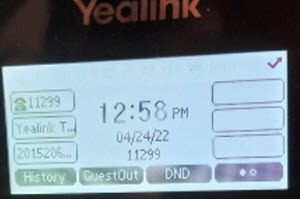
The device is now the primary device of the hotel guest's phone number and works the same as if that device were the primary device of that phone number.
You can select the GuestOut option to log out of the hoteling guest.
If you log out of hoteling guest, a prompt appears asking if you’d like to log out of the guest.
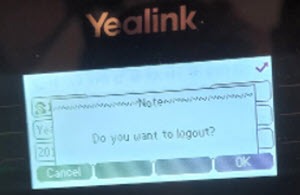
Once the phone that was the host is logged out, you’ll see a GuestIn option on the phone; however, you’ll need to use the Admin Portal or User Portal to assign the device as a host again.
Note: On Yealink phones, once hoteling is used on a remote device, the GuestIn option remains as 1 of the soft key options at the bottom until hoteling is removed from the device in User Hub.

