Voicemail groups
The voicemail groups feature enables you to create a shared voicemail or inbound fax box for users, with call routing features like auto attendant, call queue, or hunt group. You can set up new message notifications, choose storage locations, and customize voicemail greetings.
Create a voicemail group using a primary line or extension
- Log in to User Hub.
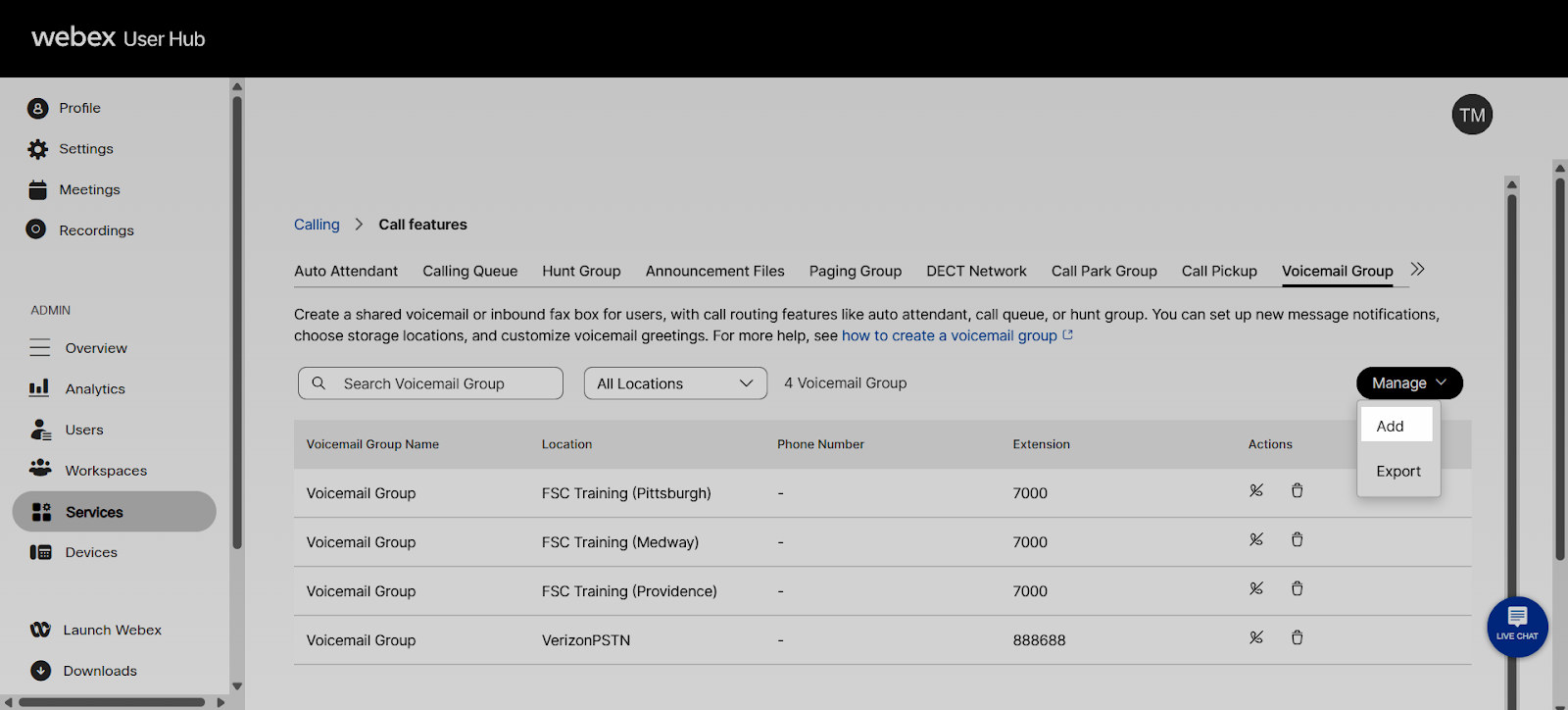
- Go to Services > Calling > Call Features > Voicemail Group
- Select Manage, then click Add.
- On the Basics page, enter the following information:
- Location—Where this voicemail group service is assigned.
- Voicemail Group Name—The name used to identify this voicemail group.
- Phone Number—Assign a phone number and/or extension.
For fax service, a separate, full phone number is required. For only voicemail service, a phone number is optional. - Direct line caller ID name—Select a caller ID to display when a person makes a call from this voicemail group. You can choose a Display name or Other direct line caller ID name, a field displays in which you can enter a custom name.
Note: Other direct line caller ID name supports unicode characters of maximum 128 characters length. - Dial by Name—Enter a name that you want to use to dial this voicemail group. The Dial by Name field supports ASCII characters.
- Voicemail Passcode—Use this code to access the voicemail group when you’re calling.
- On the Settings page, enter the following information, and then click Next.
- Language—Select the language for the audio announcements.
- Message Storage—Choose where messages are stored.
- Use internal mailbox—If you choose this option, users can access their voice messages from phone, Webex App, and User Hub.
Note: The internal mailbox has the following storage limitations:- Single message limit of 10 minutes
- Total mailbox limit of 100 minutes
- Use external mailbox—If you choose this option, all the voice messages are sent to a specified email. Users can't access voice messages from their phone, Webex App, or User Hub. Also, voicemails aren’t transcribed.
- Use internal mailbox—If you choose this option, users can access their voice messages from phone, Webex App, and User Hub.
- New Message Notification—Receive notifications of any new voicemails or faxes to an email address. If enabled, enter the email address.
- Fax Messaging—Allow this voicemail group to receive fax messages.
- Additional Voicemail Settings—Choose one or both of the following:
- Select Transfer to '0' to phone number and enter the phone number to which callers are transferred.
- Select Email a copy of message and enter the email address to which the recording of all voicemails is sent.
- On the Review page, under each tab, review your new voicemail group settings to make sure everything is correct. You can click Back to make any changes, or click Create to apply the settings to your new voicemail group.
- Click Done.