
Single number reach group feature
The group feature for single number reach (SNR) offers outbound calling features from personal devices.
- Users are unable to utilize the outbound calling features with SNR when no portal number on this feature is configured.
- The following outbound calling features are available when utilizing the SNR portal number
- Place calls from any of the personal numbers to appear as the user’s business number - From the phone set up on the SNR user feature, the user calls the SNR portal number to dial out so the Caller ID of the call appears as the user’s number.
- Place calls to an internal extension number from any of the personal numbers.
- Push and Pull active calls between desktop and mobile phones - When on an active call, the user can use call pull to move the call to any phone or any number set up as a personal number on SNR to move the call to that device.
- Place long distance and international calls from an alternate phone - If you have to pay for long distance calls or want the international call to bill your account, you would call into the SNR portal number from a phone that has the personal number set up on this feature to make the outbound call.
- Configure the portal number to utilize these features.
The Single Number Reach user feature must be set up for the user before the group feature can be configured. For instructions, see Single number reach.
Configure the single number reach group feature
- Log in to User Hub.
- Verify which Telephone Number (TN) is going to be used for the SNR portal with the user.
Note: This TN cannot be assigned to a user or a feature. If you do not have any free phone numbers to use, consider using one of the calling feature numbers that are not in use.
- Click Services.
- Select Call Features.
- Select Single Number Reach at the top.
- Select the SNR being managed. Or, if none is set up, select Manage > Add.
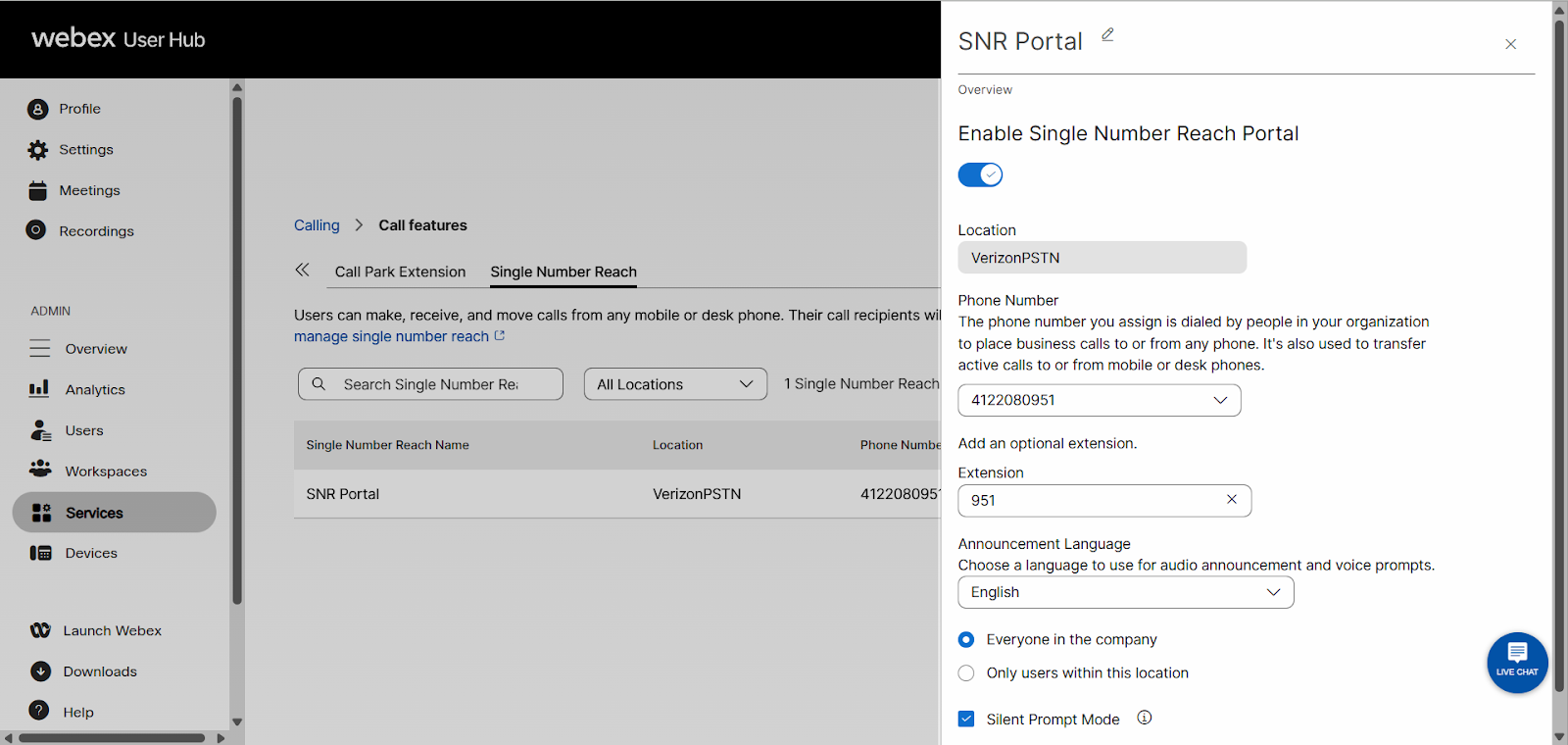
- Configure the following options on the Edit Single Number Reach page:
- Name - The name for the SNR portal that is being set up.
- Enable Single Number Reach Portal - Toggle to enable or disable.
- Location - The location where the SNR portal is set up on.
- Phone Number - Assign or unassign the SNR portal phone number.
- Extension - The extension number for the SNR portal.
- Announcement Language - Choose a language for the audio announcement and voice prompts.
- User selection - The following settings are available:
- Everyone in the company
- Only users within this location
- Allows you to specify if users on all locations or this particular location are available for extension dialing when users call into the SNR portal number.
- Verizon does not offer the option to have multiple locations under 1 portal, so this can remain the default, which is “Everyone in the company”.
- Silent Prompt Mode - If turned on, when calling the SNR portal number, there are no audio prompts.
- Click Save.
Use the single number reach group feature
Place a call from a personal number
To place a call from a personal number so it appears as your business number:
- From the phone set up as a personal number on SNR, call the SNR portal number.
- Enter your voicemail passcode, then press pound (#).
Note: If calling from a number not set up as a location TN, you will hear: "Please enter the number of which you are calling then press the pound (#) key." Enter the TN of the location you want to use, then enter your passcode. - Enter the TN or extension number you want to call, then press pound (#).
- The outbound call is placed and displays your business number on the caller ID.
Transfer a call from a personal device to a desk phone
To pull an active call from a personal number to an IP phone or ATA:
- From the IP phone or ATA, dial *11.
- The call moves to the IP phone or ATA and disconnects from the personal device.
Transfer a call from a desk phone to a personal device
To push an active call from an IP phone or ATA to a personal number:
- From the personal number device, call the SNR portal number.
- Enter your voicemail passcode, then press pound (#).
Note: If calling from a number not set up as a location TN, you will hear: "Please enter the number of which you are calling then press the # key." Enter the TN of the location you want to use, then enter your passcode. - Dial *11, then press pound (#).
- The call moves to the personal device and disconnects from the IP phone or ATA.
Place long distance or international calls from a personal device
To place a long distance or international call from a personal number so it bills to your account:
- From the phone set up as a personal number on SNR, call the SNR portal number.
- Enter your voicemail passcode, then press pound (#).
- Enter the long distance or international number you want to call, then press pound (#).
- The call is placed and billed to your account.

