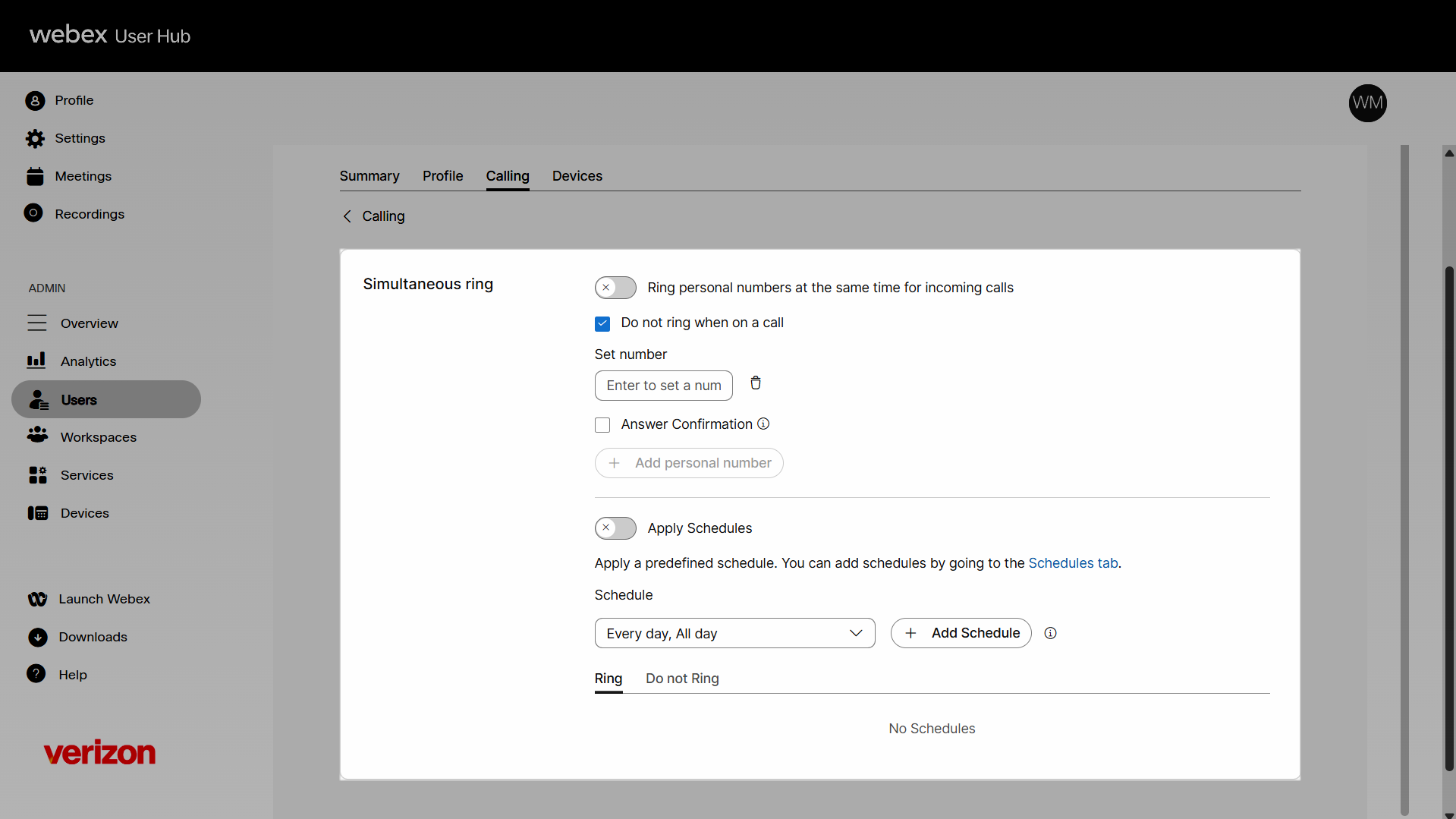
Set up and manage the simultaneous ring feature for a user
Simultaneous ring (also known as sim ring) is a mobility feature that, when enabled, rings your office phone and another phone of your choice at the same time. Additionally, rules can be assigned to this feature so that calls will ring your simultaneous ring phones only during certain times of the day, days of the week, or from specific phone numbers. Administrators can configure and manage simultaneous ring settings for a user.
- Sign in to User Hub.
- Under Admin, in the left menu, select Users.
- Select the user you’d like to modify.
- Select Calling.
- Under Call handling, scroll to and select Simultaneous ring.
- Click the toggle button to enable it. To disable it, click the toggle button again.
- Once enabled, enter a valid phone number into the Set number field. You can add up to 10 numbers to ring simultaneously when your phone receives an incoming call by clicking Add personal number. You can also choose not to have these numbers ring when you’re on the phone.
Note: By selecting Answer confirmation, the call recipient is prompted to press any key before being connected. This is useful when you want the call recipient to know that the call is not meant specifically for them. - Once your numbers have been entered, you can create a rule to define when this feature takes effect. To do this, click the toggle next to Apply Schedules.
- Choose a predefined schedule from the drop-down menu or click the Add Schedule button. The Apply a schedule box should appear.
- Select the numbers for this specific alert. You can either choose Any phone number (to get alerts for all calls) or Select phone numbers (to get alerts for specific calls).
- Choose Ring or Don’t Ring.
- Click Save.