
Set up priority alerts for incoming calls for a user
Priority alert, when enabled and configured, rings your phone with a distinctive ring, allowing you to know that a specific person or group of people is calling within a specified time period.
The criteria for each priority alert entry can list up to 12 phone numbers or digit patterns, a specified time schedule, and a specified holiday schedule. All criteria (i.e., phone number, day of week, and time of day) for an entry must be true for the phone to ring with a different tone. Administrators can configure and manage priority alert settings for a user.
Feature prerequisites/restrictions
- Ten-digit numbers are required in the criteria settings.
- Supported station types: Premium User, Hosted Square Key, and Hosted PRI
- Feature interaction/precedence:
- Alternate numbers – Priority alert has precedence over the alternate number feature.
- Hunt group – When a call to a hunt group is presented to a user in the hunt group, the user’s priority alert service is inhibited. This means that any priority alert settings for the user are not applied to the call.
- Call waiting – Priority alert applies to waiting calls and applies a distinctive ring per the defined criteria.
- Shared call appearance – Priority alert applies to all shared call appearance locations for the user. The shared endpoint must support the service.
- Simultaneous ringing/single number reach/mobility – Priority alert only applies to the main endpoint and not to secondary locations.
Feature setup
- Sign in to User Hub.
- Under Admin, in the left menu, select Users.
- Select the user you’d like to modify.
- Select Calling.
- Under Call handling, select Priority alert.
- Click the toggle button to enable it.
- Select a predefined schedule from the drop-down menu.
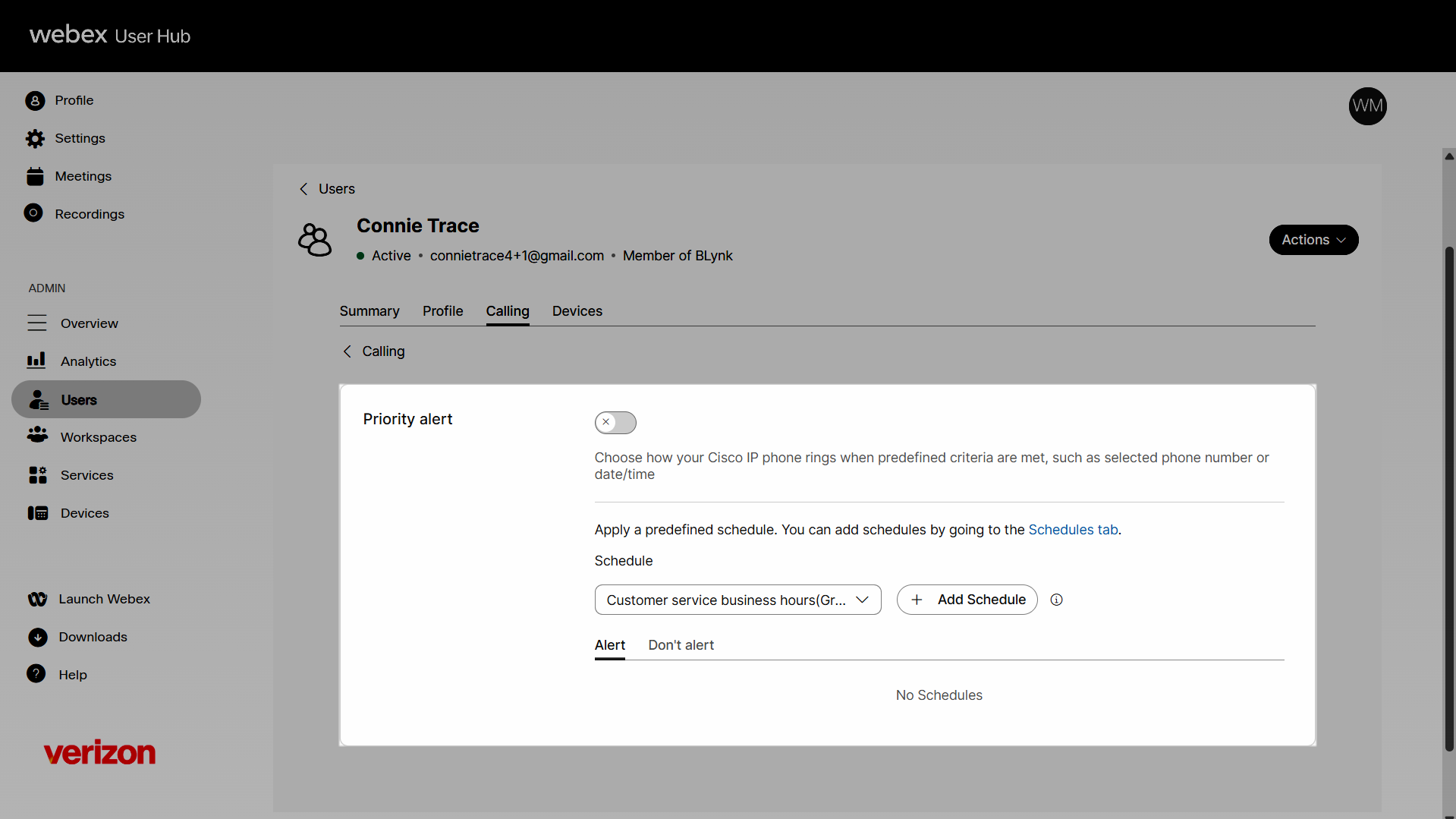
If you do not see a schedule you would like to use for this setting, you can add a schedule in User Hub. For more information, see Create a time schedule to apply to your call settings.
- Select the numbers for this specific alert. You can either choose Any Phone Number (to get alerts for all calls) or Select Phone Numbers (to get alerts for specific calls).
- If Select phone numbers is selected, you have several options to choose from:
- Any private number: All numbers coming from a private number will be alerted with a distinctive ring.
- Any unavailable number: All unavailable numbers will be alerted with a distinctive ring.
- Select whether to be alerted or not.
- Click Save. Your Priority Alert should show in the Priority Alert area.

