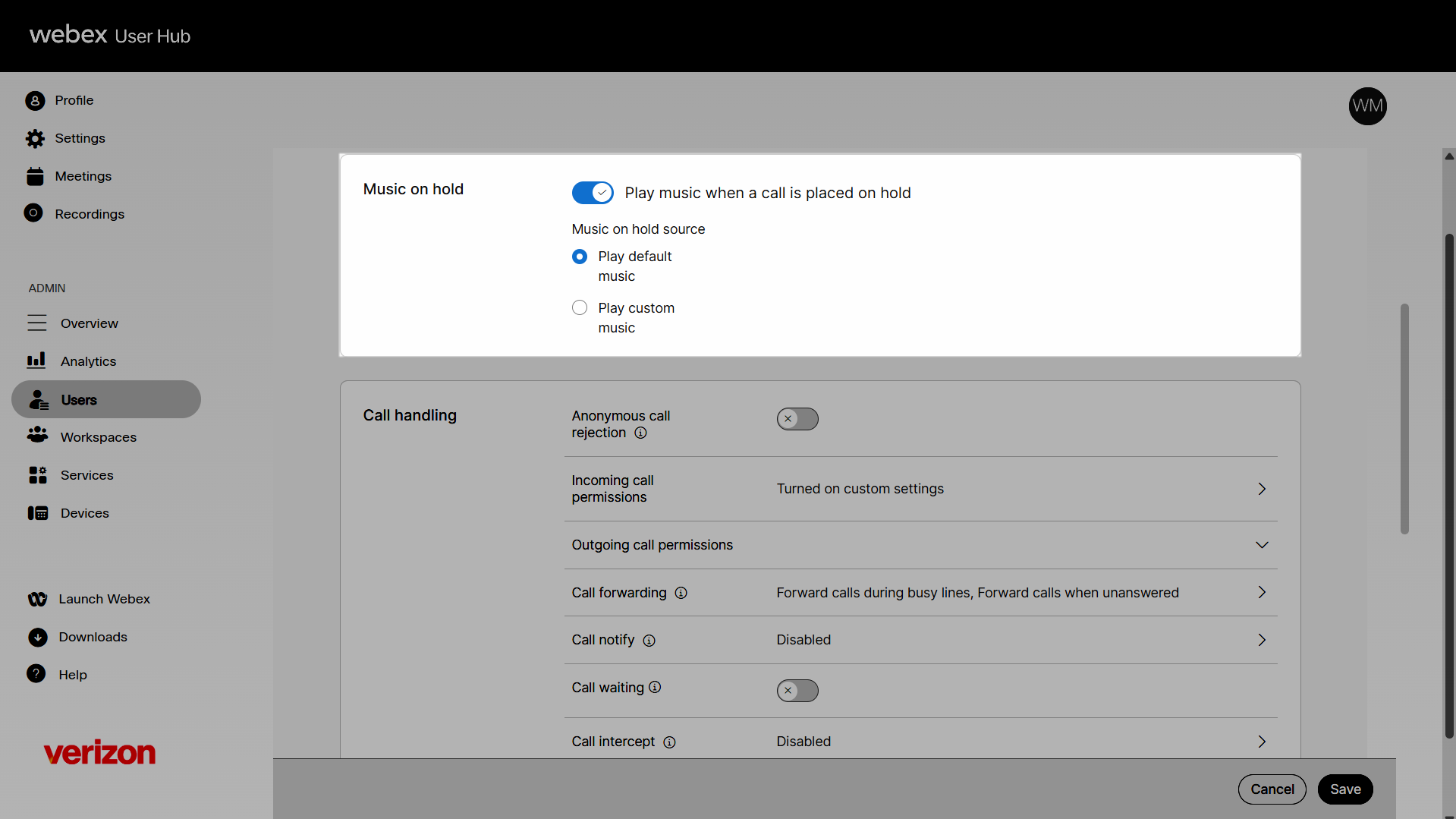
Enable music on hold for a user
You can assign and configure the music callers hear when placed on hold. Use the default system music or upload a custom audio file to be played.
- Default: The system plays music to fill the silence and allow the customer to know they are still connected.
- Custom: Enables you to upload a customized message.
To configure the hold music for a user, follow these steps:
- Log in to User Hub.
- Under Admin, in the left menu, select Users.
- Select the user you’d like to modify.
- Select Calling.
- Under Music on hold, click the toggle button to enable it.
- Select the hold music source. This setting assigns either the default music on hold or a custom music-on-hold file.
- Play default music - If selected, the default hold music file is played to callers placed on hold.
- Play custom music - Choose this option to assign a custom hold music file. Note: This file needs to have the following attributes: CCITT u-Law 8 or 16 kHz, 8 or 16 bit Mono .WAV file format, maximum 4.6 MB, minimum of 5 seconds long.
- Select Save to save your settings.
- To disable it, click the toggle button again.