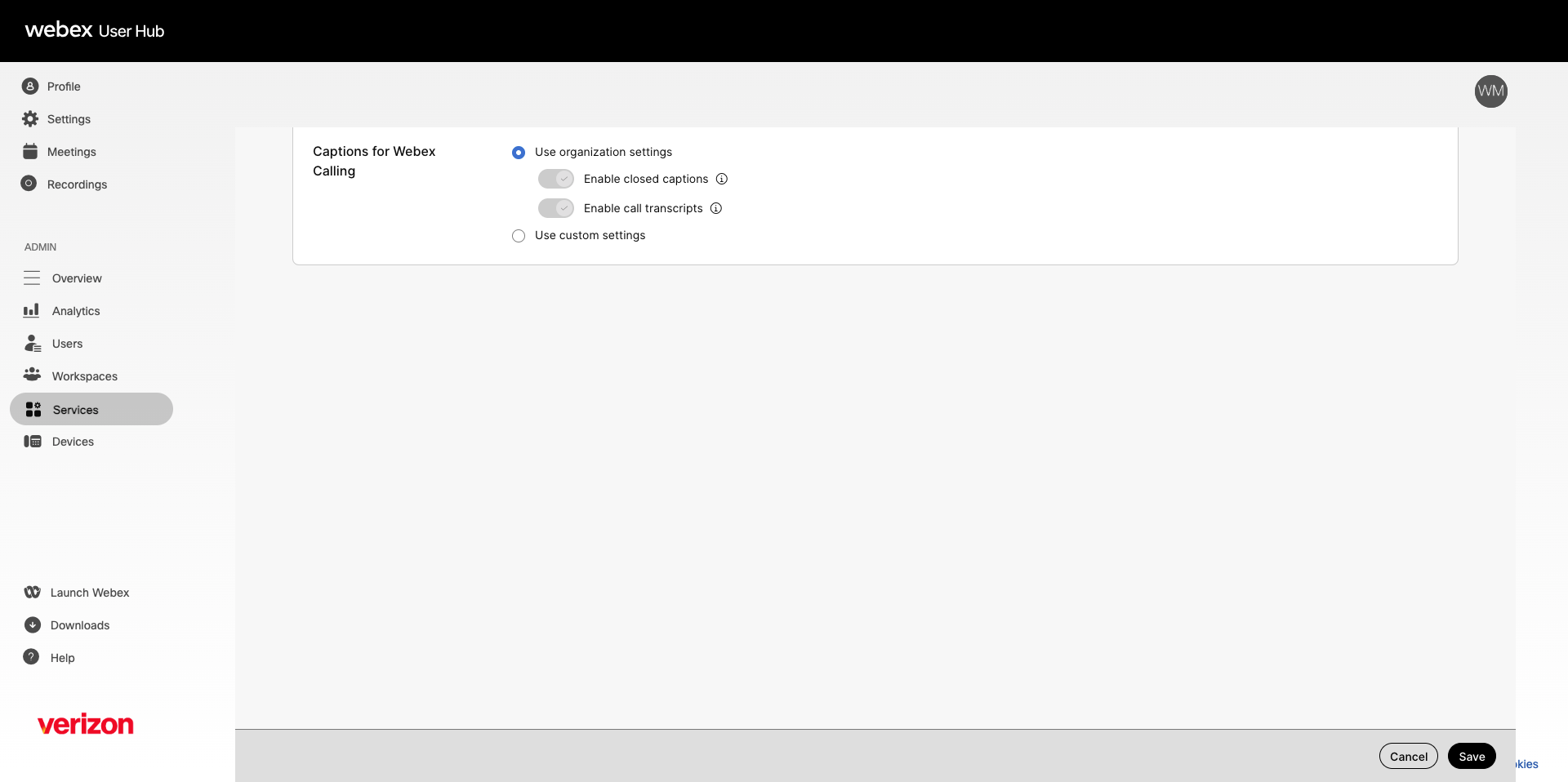
Closed captions and call transcriptions in Webex Calling improve accessibility and support inclusive conversations for users with diverse communication needs. Only an administrator can enable these features at the organization, location, or user level.
- Closed captions (CC) — Display spoken content as text during a live call.
- Call transcriptions — Convert spoken language into written text in real time. Each user in a call can enable call transcription independently, and it appears only for that user.
Note: Closed captions and call transcriptions are available only to Webex Calling Professional licensed users. Supported clients are Webex App on desktop, iOS, and Android. This feature is not available for calls made or received on shared lines.
Enable closed captions and call transcriptions for a user
- Log in to User Hub.
- Under Admin, in the left menu, select Users.
- Select the user you'd like to modify.
- Select Calling.
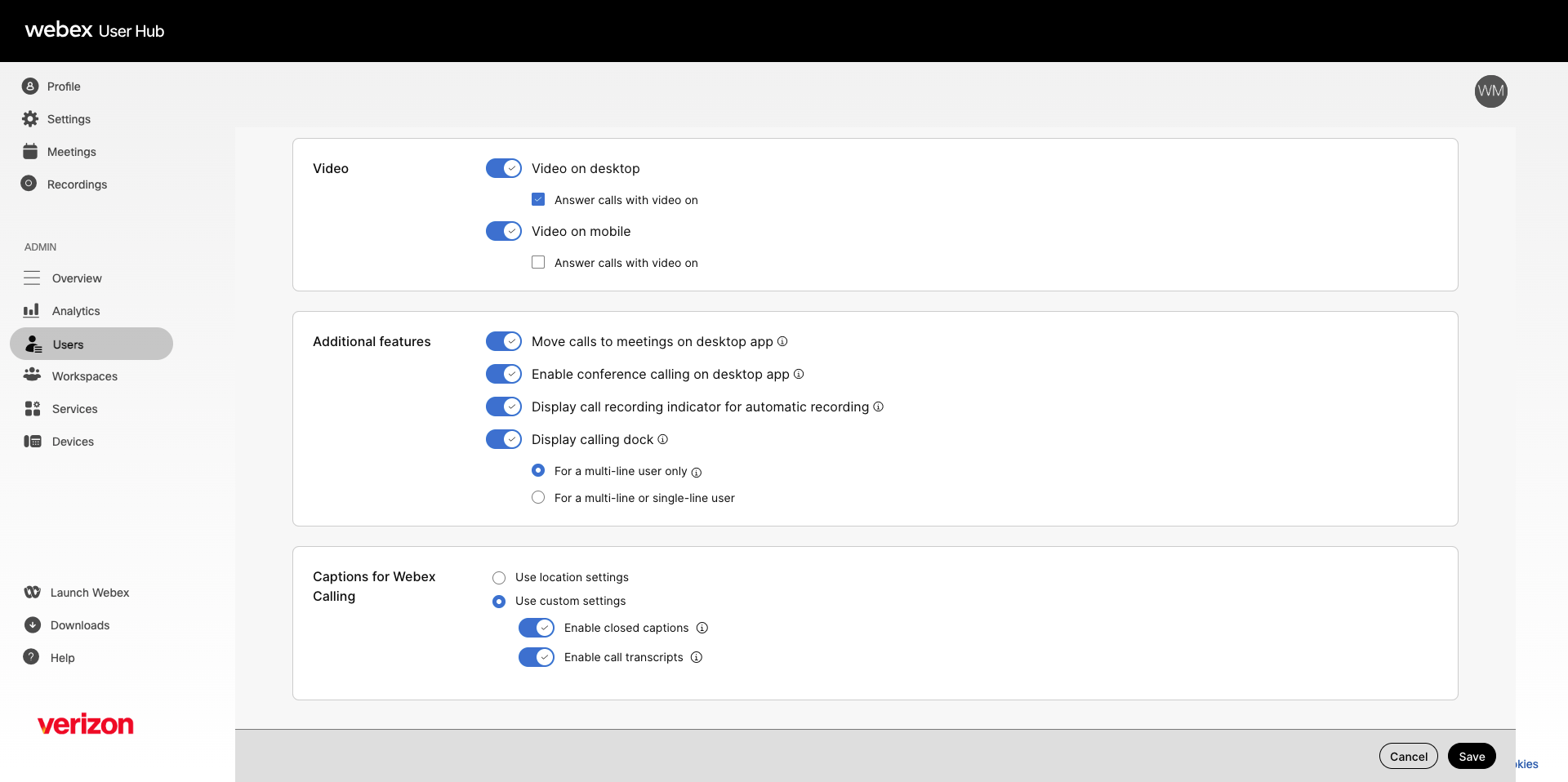
- Under User call experience, select In-call feature access and scroll to Captions for Webex Calling.
- Choose one of the following:
- Use location settings — The user inherits closed captions and call transcriptions settings from the location. This option is selected by default and cannot be modified here.
- Use customized settings — Manually enable closed captions and call transcriptions for this user.
- Select Save.
Enable closed captions and call transcriptions for a location
By default, a location inherits closed captions and call transcriptions settings from the organization.
- Log in to User Hub.
- Under Admin, in the left menu, select Services.
- Select Locations and choose the location you'd like to modify.
- Select Calling.
- Under Calling features settings, select Captions for Webex Calling.
- Enable closed captions and call transcriptions for the location.
- Select Save.