Webex Calling call queue
Calling queue offers essential call center features like voice queues, skill-based routing, call queue monitoring, and analytics. This voice-only solution is ideal for customers needing straightforward, voice-centric call center capabilities.
Note: The FSC does not support configuring the Calling Queue feature. This guide is provided for reference only.
Create a call queue
You can create multiple call queues for your organization. When customers' calls can't be answered, they're provided with an automated answer, comfort messages, and/or hold music until someone can answer.
- Log in to User Hub and select Services from the left navigation.
- Select the Calling tab, then select Call Features.
- Select the Calling Queue tab.
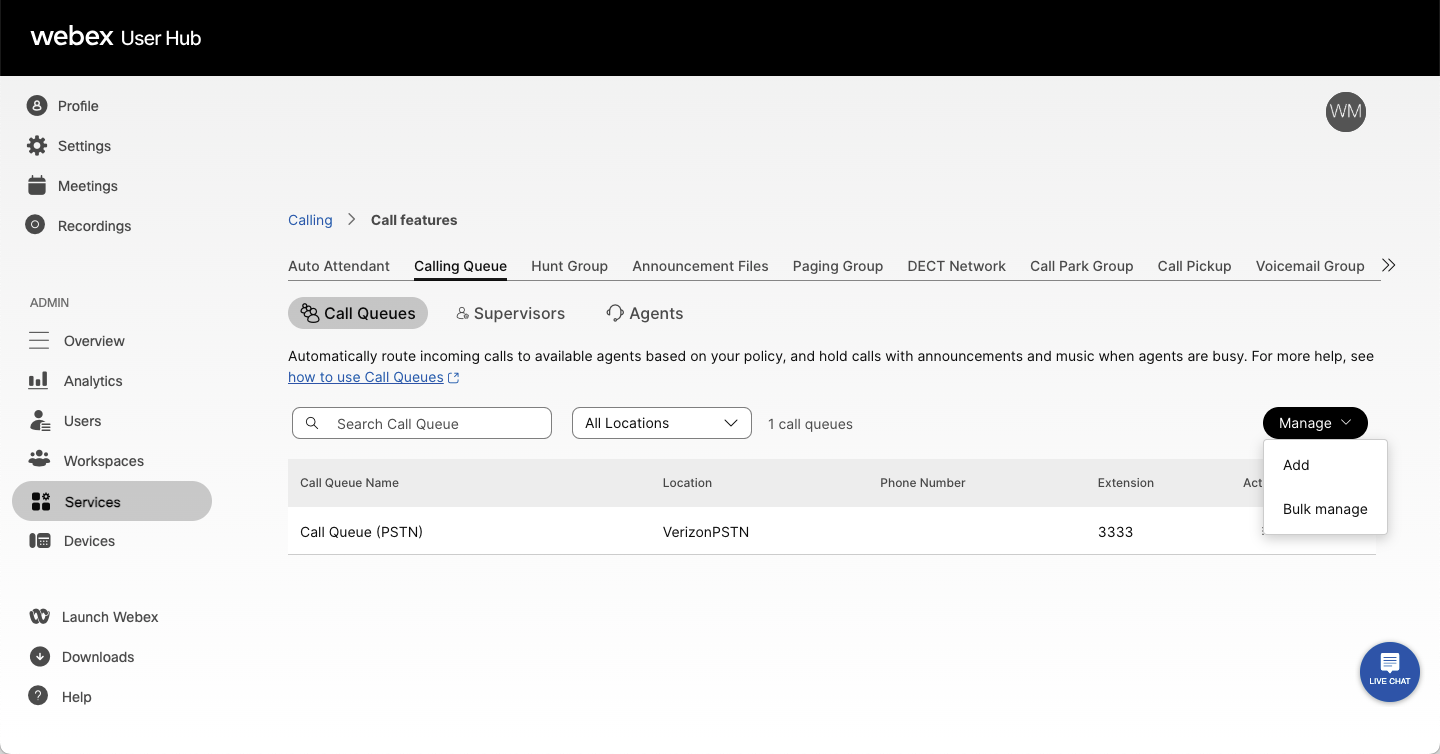
- Select Manage, then select Add from the drop-down menu.
- On the Basics page, enter the following information, then select Next:
- Location — Select a location from the drop-down menu.
- Call Queue Name — Enter a name for the call queue. This name is used to identify the call queue later.
- Phone Number — Assign the call queue to a Webex Calling primary line. A phone number and/or extension is required.
- Allow agents to use call queue number as caller ID — Enable the toggle to allow the queue phone number for outgoing calls.
- Number of Calls in Queue — Assign the maximum number of calls for this call queue. Once this number is reached, the overflow settings are triggered.
- Direct line caller ID name — Select how the caller ID name displays:
- Display name — Uses the display name configured for the queue.
- Other direct line caller ID name — Enter a custom caller ID name.
- Dial by name — Enter a dial by name value. This is used for auto attendant name dialing.
- External caller ID phone number — Select Other number from organization and choose a number from the drop-down menu.
- Language — Select the call queue language from the drop-down menu.
- Distinctive Ringing — Set a special ring pattern to distinguish incoming calls from this call queue.
- On the Call Routing page, choose one of the following options, then select Next.
- Priority-based options:
- Circular — Cycles through all agents after the last agent that took a call. Sends calls to the next available call queue agent.
- Top Down — Sends calls through the queue of agents in order, starting from the top each time.
- Longest Idle — Sends calls to the agent that has been idle the longest. If they don't answer, proceeds to the next agent who has been idle the second longest, and so on until the call is answered.
- Weighted — Sends calls to agents based on percentages you assign to each agent in the call queue profile (up to 100%).
- Simultaneous — Sends calls to all agents in a call queue at once.
- Skill-based options:
Note: When you select skill-based call routing, routing happens based on skill level by default. If more than one agent shares the same skill level, the selected routing pattern (circular, top down, or longest idle) is used to determine the next agent.- Circular — Cycles through all agents after the last agent that took a call.
- Top Down — Sends calls through the queue of agents in order, starting from the top each time.
- Longest Idle — Sends calls to the agent that has been idle the longest.
- Priority-based options:
- On the Queue Settings page, configure the following, then select Next.
- Overflow settings — Choose how new calls are handled when the queue is full. Select one of the following from the drop-down menu:
- Perform busy treatment — The caller hears a fast-busy tone.
- Transfer to phone number — Enter the number where you want to transfer overflow calls.
- Play ringing until caller hangs up — The caller hears ringing until they disconnect.
- Enable overflow after calls wait x seconds — Toggle on and enter a wait time in seconds. Once this wait time is reached, the overflow treatment is triggered.
- Play announcement before overflow processing — Toggle on to play an announcement before overflow handling begins. If disabled, callers hear hold music until the call is answered.
- Notification tones for agents — These settings control the notification tones an agent hears when supervisor functions are invoked:
- Use organization's default settings — Applies the default notification tone settings for your organization.
- Define custom notification settings — Configure custom notification tones for this queue.
- Overflow settings — Choose how new calls are handled when the queue is full. Select one of the following from the drop-down menu:
- On the Announcements page, choose the messages and music callers hear while waiting, then select Next. You can enable any of the following:
- Welcome Message — Plays when callers first reach the queue. Can be set as mandatory.
- Estimated Wait Message for Queued Calls — Notifies the caller of their estimated wait time or position in the queue. Plays after the welcome message and before the comfort message.
- Comfort Message — Plays after the welcome message and before hold music. Typically includes information such as current promotions or information about products and services.
- Comfort Message Bypass — Plays a shorter comfort message for calls that should be answered quickly, preventing callers from hearing an abrupt portion of the standard comfort message.
- Hold Music — Plays after the comfort message in a repetitive loop.
- Call Whisper — Plays a message to the agent immediately before the incoming call is connected, announcing the identity of the call queue.
- On the Select Agents page, use the search tool to add users or workspaces to the call queue, then select Next.
- If you selected skill-based routing, assign a skill level (1 = highest, 20 = lowest) to each user or workspace.
- Allow agents on active calls to take additional calls — Check this box to enable the feature.
- Allow agents to join or unjoin the queue — Check this box to enable the feature.
Note: Depending on the call routing option you selected, you may need to add extra information such as weighting percentages. For circular or top-down routing, drag and drop users and workspaces in the order of their queue position.
- On the Review page, review your call queue settings to confirm the details are correct.
- Select Create, then select Done.
Disable a call queue
You can disable a previously created call queue.
- Log in to User Hub and select Services from the left navigation.
- Select the Calling tab, then select Call Features.
- Select the Calling Queue tab.
- Select the call queue you want to disable.
- In the Overview, toggle Enable Call Queue to off.
- Select Save.
Edit call queue general settings
You can change the language, number of calls for the queue, the caller ID, and distinctive ringing features.
- Log in to User Hub and select Services from the left navigation.
- Select the Calling tab, then select Call Features.
- Select the Calling Queue tab.
- Select the call queue you want to disable.
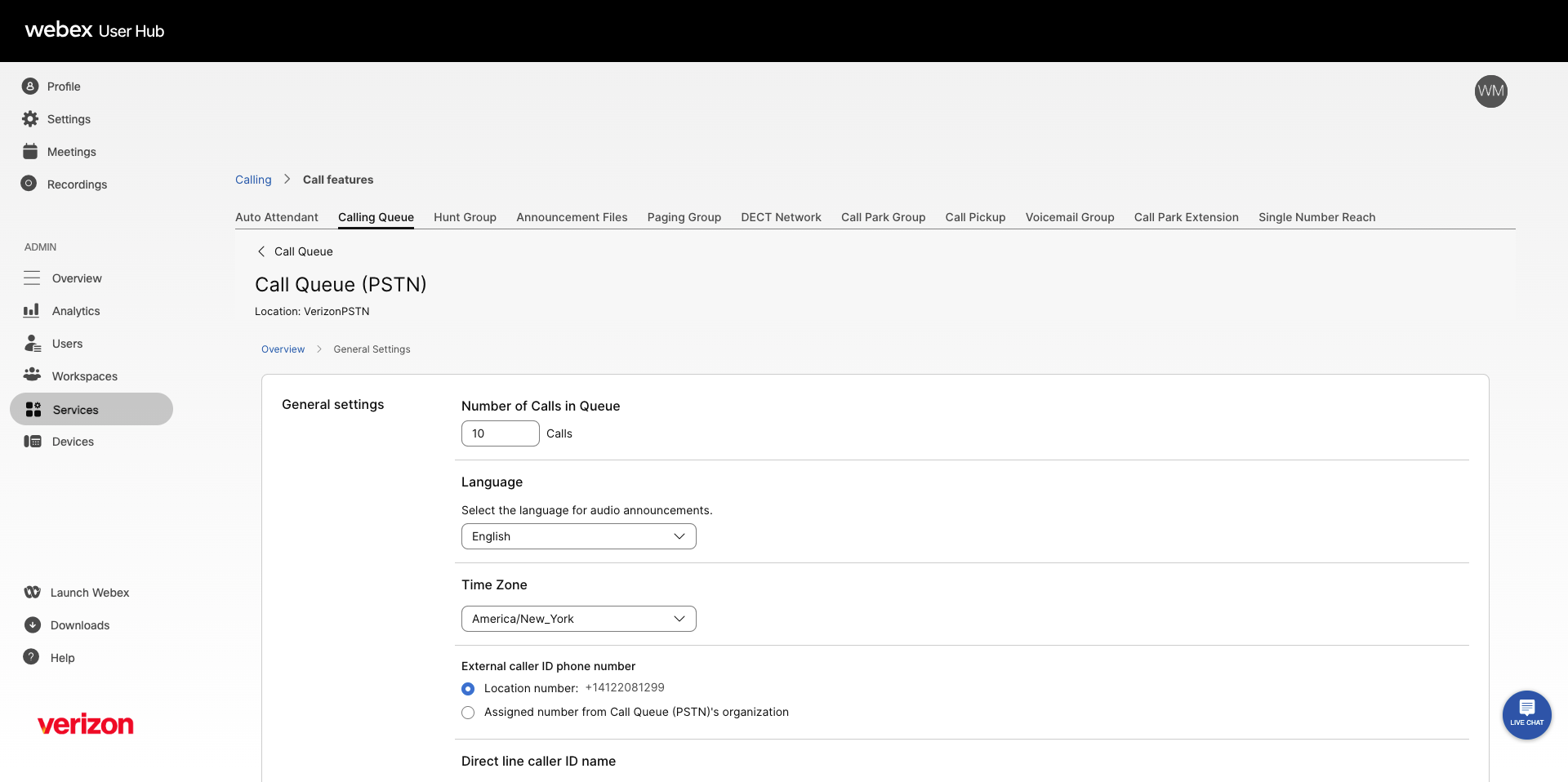
- In the Overview section, select the arrow next to General settings.
- Edit any of the following fields:
- Number of Calls in Queue — The maximum number of calls for this call queue.
- Language — Applies to audio announcements for this call queue.
- Time Zone — Applies to the schedules assigned to this call queue.
- External caller ID phone number — Choose Location number or Assigned number from Call Queue.
- Direct line caller ID name — Select how the caller ID name displays:
- Display name — Uses the display name configured for the queue.
- Other direct line caller ID name — Enter a custom caller ID name.
- Dial by name — Enter a dial by name value. This is used for auto attendant name dialing.
- Notification tones for agents- These settings can be used to toggle the notification tones that an agent will hear when supervisor functions are invoked.
- Use organization’s default settings
- Define custom notification settings
- Distinctive Ringing — Set a special ring pattern to distinguish incoming calls from this call queue.
- Select Save.
Edit call queue phone numbers
You can change your call queue phone number and add up to 10 alternate numbers.
- Log in to User Hub and select Services from the left navigation.
- Select the Calling tab, then select Call Features.
- Select the Calling Queue tab.
- Select the call queue you want to edit.
- In the Overview section, select the arrow next to Phone Numbers.
- Edit the Phone Number and/or Extension.
- Add alternate numbers using the search function.
- Enable or disable Distinctive Ringing for alternate numbers using the toggle.
- In the table, select the ring pattern to assign to each alternate number using the Ring Pattern drop-down menu.
- Select Save.
Configure call forwarding for a call queue
You can forward all incoming calls based on criteria you define.
- Log in to User Hub and select Services from the left navigation.
- Select the Calling tab, then select Call Features.
- Select the Calling Queue tab.
- Select the call queue you want to edit.
- In the Overview section, select the arrow next to Call Forwarding.
- Select the toggle to enable.
- Choose one of the following options:
- Always Forward Calls — Always forward calls to a designated number.
- Selectively Forward Calls — Forward calls to a designated number depending on criteria.
- Forward calls by modes — Route calls to internal employees, specific groups, or various company locations. Authorized administrators can manage these routing workflows directly.
Note: If you choose Selectively Forward Calls, you need at least one forwarding rule for call forwarding to be active.
- If you selected Always Forward Calls, assign the number you want to forward calls to and select Save.
Note: For either option, check the Send to Voicemail checkbox to forward all calls to an internal voicemail. This checkbox is disabled when an external number is entered.
- If you selected Selectively Forward Calls, create a rule by selecting Add When to Forward or Add When Not to Forward.
- Enter a Rule Name.
- For When to Forward or When Not to Forward, select a Business Schedule and Holiday Schedule from the drop-down menus.
- For Forward To, select at least one option from Default Phone Number or add a Different Phone Number.
- For Calls From, select Any Number or Selected Numbers with at least one of the following:
- Any Number — Forwards all calls in the specified rule.
- Any Private Numbers — Forwards calls from private numbers.
- Any Unavailable Numbers — Forwards calls from unavailable numbers.
- Add Specific Numbers — Forwards calls from up to 12 numbers that you define.
- For Calls To, select a number or alternative number from the drop-down menu.
Note: Once a rule is created, you can enable or disable it using the toggle in the table. You can also edit or delete a rule at any time by selecting Edit or Delete.
- If you selected Forward calls by modes, click Add operation mode to select the mode from the drop-down menu.
- Select Save.
Edit call queue routing pattern
You can change the call routing pattern of your existing call queue.
- Log in to User Hub and select Services from the left navigation.
- Select the Calling tab, then select Call Features.
- Select the Calling Queue tab.
- Select the call queue you want to edit.
- In the Overview section, select the arrow next to Call Routing Type.
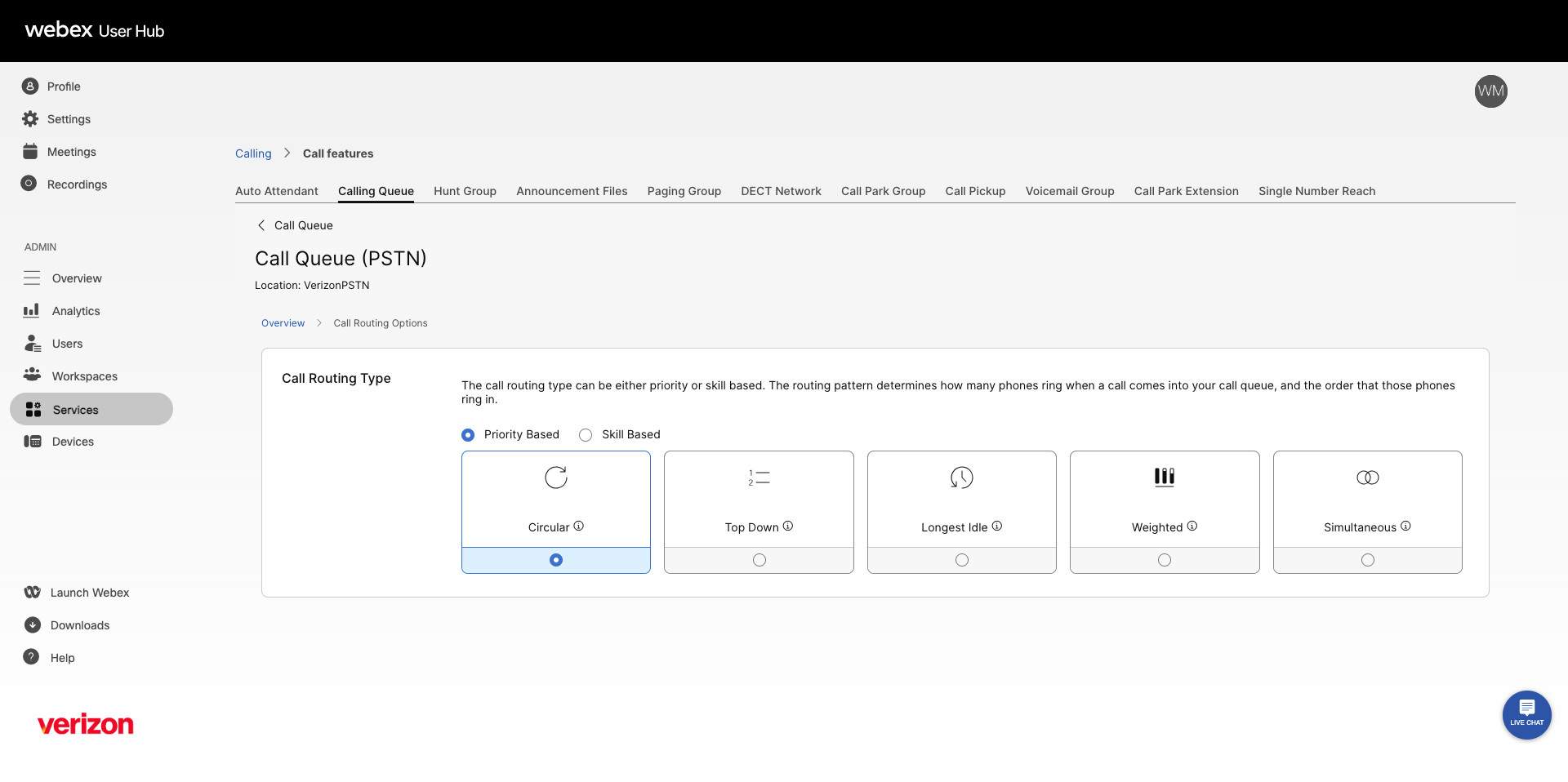
- Modify the call routing type to Priority Based or Skill Based.
- Edit the routing option:
- Circular — Cycles through all agents after the last agent that took a call.
- Top Down — Sends calls through the queue of agents in order, starting from the top each time.
- Longest Idle — Sends calls to the agent that has been idle the longest.
- Weighted — Sends calls to agents based on assigned percentages (priority-based only).
- Simultaneous — Sends calls to all agents at once (priority-based only).
- Select Save.
Edit call queue overflow settings
Overflow settings determine how calls are handled when the call queue becomes full.
- Log in to User Hub and select Services from the left navigation.
- Select the Calling tab, then select Call Features.
- Select the Calling Queue tab.
- Select the call queue you want to edit.
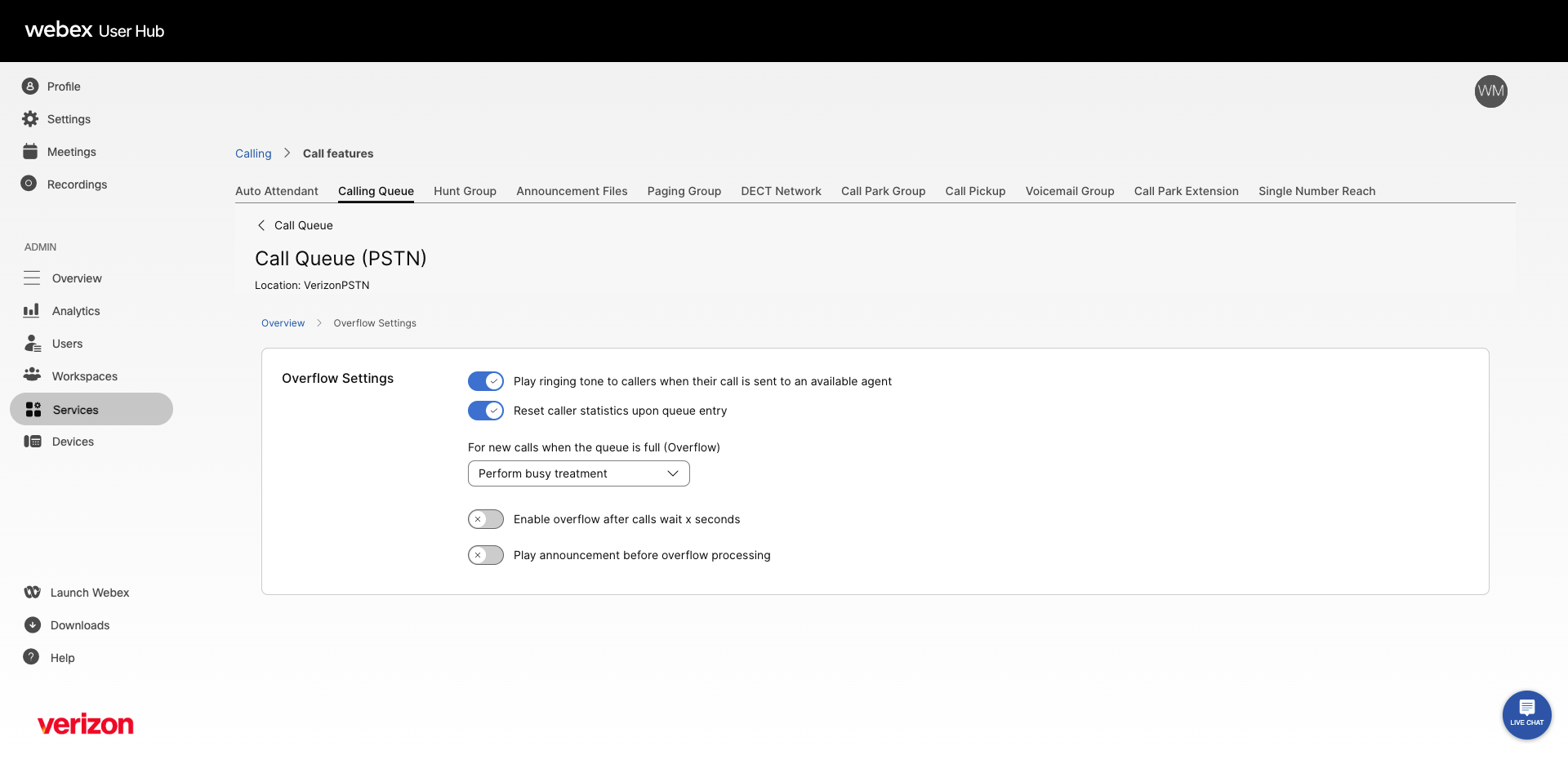
- In the Overview section, select the arrow next to Overflow Settings.
- Toggle on or off the following settings as needed:
- Play ringing tone to callers when their call is set to an available agent
- Reset caller statistics upon queue entry
- Choose how to handle new calls when the queue is full:
- Perform busy treatment — The caller hears a fast-busy tone.
- Transfer to phone number — Enter the number where you want to transfer overflow calls.
- Play ringing until caller hangs up — The caller hears ringing until they disconnect.
- Toggle on or off the following settings as needed:
- Enable overflow after calls wait x seconds — Enter a wait time in seconds. Once the wait time is reached, the overflow treatment is triggered.
- Play announcement before overflow processing — If disabled, callers hear hold music until the call is answered.
- Select Save.
Edit call queue bounced call settings
Bounced calls are calls sent to an available agent that the agent did not answer. These calls are placed back at the top of the queue.
- Log in to User Hub and select Services from the left navigation.
- Select the Calling tab, then select Call Features.
- Select the Calling Queue tab.
- Select the call queue you want to edit.
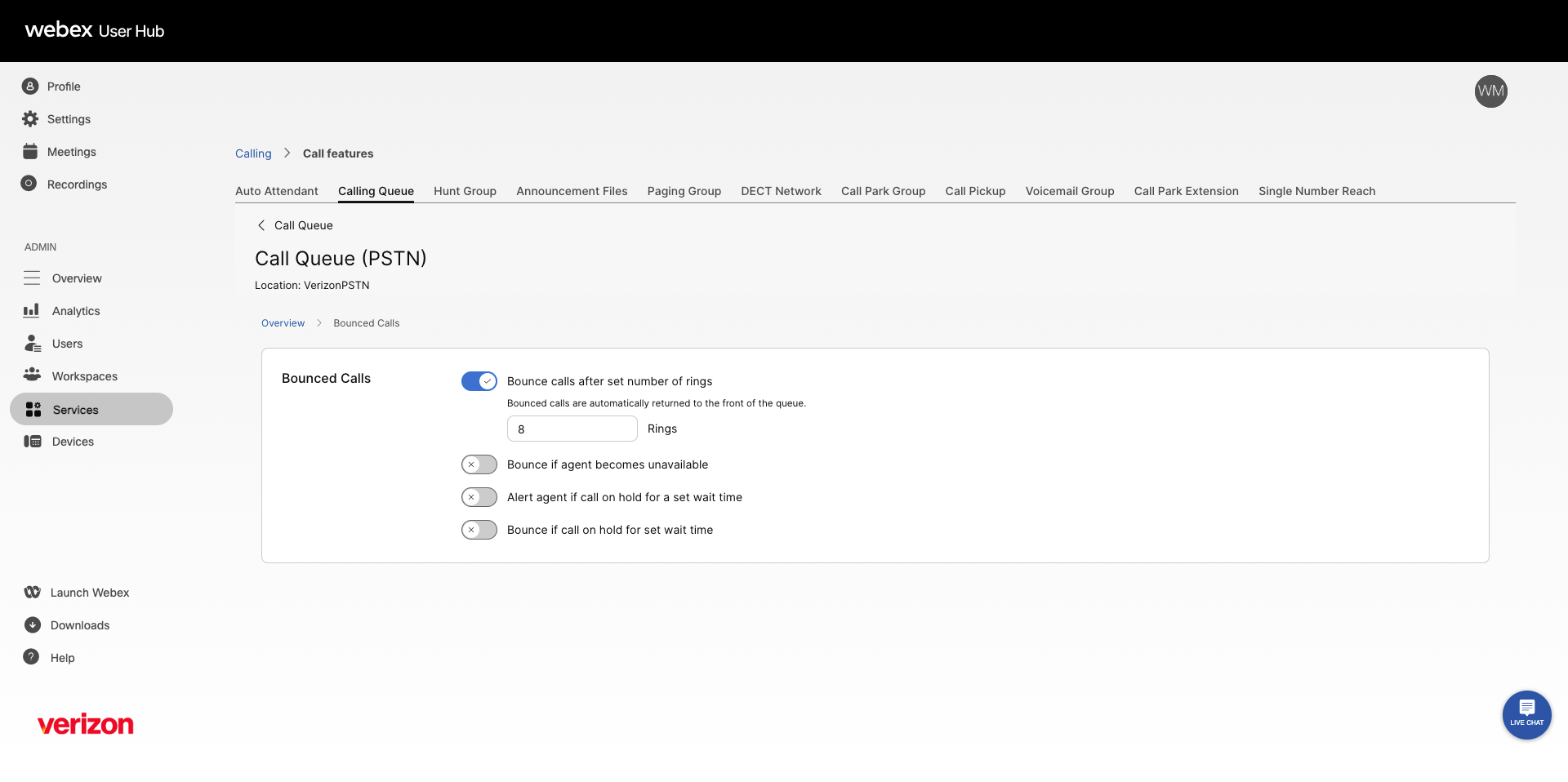
- In the Overview section, select the arrow next to Bounced Calls.
- Select the toggle next to any of the following options to enable or disable:
- Bounce calls after set number of rings — If selected, enter the number of rings.
- Bounce if agent becomes unavailable
- Alert agent if call on hold for a set wait time — If selected, enter the wait time in seconds.
- Bounce if call on hold for set wait time — If selected, enter the wait time in seconds.
- Select Save.
Edit call queue call back settings
The call back option allows callers to receive a call back to the phone number they provide when their original position in the queue is reached.
Note: You can configure call back settings only if you have enabled the Estimated Wait Message for Queued Calls option.
- Log in to User Hub and select Services from the left navigation.
- Select the Calling tab, then select Call Features.
- Select the Calling Queue tab.
- Select the call queue you want to edit.
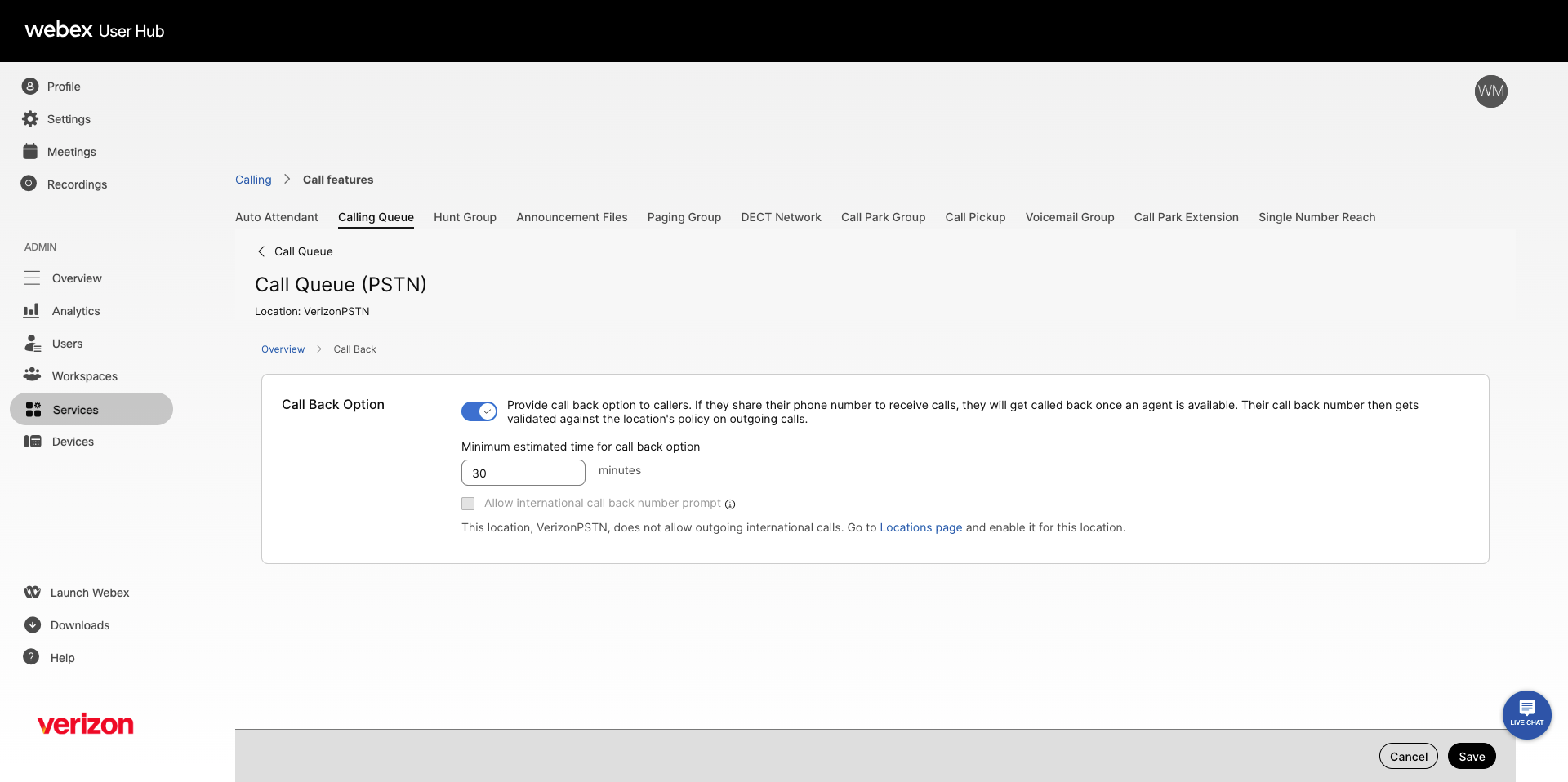
- In the Overview section, select the arrow next to Call Back.
- Select the toggle to enable or disable.
- Enter the Minimum Estimated Time for Call Back in minutes. This determines at what estimated wait time the caller receives the call back prompt.
- Check the Allow international call-back number prompt checkbox to allow international users to enter their country code.
- Select Save.
Manage call queue policies
Call queue policies determine how calls are handled in and out of the queue. Policies take precedence in this order:
- Holiday service
- Night service
- Forced forwarding
- Stranded calls
The services enabled in the call queue take the order of precedence and enter the call queue to determine the following:
- How the call is handled when the call queue becomes full
- If the call is bounced when the agent does not answer calls
- How the call is processed when the queue has no agents
To edit policies for a call queue:
- Log in to User Hub and select Services from the left navigation.
- Select the Calling tab, then select Call Features.
- Select the Calling Queue tab.
- Select the call queue you want to edit.
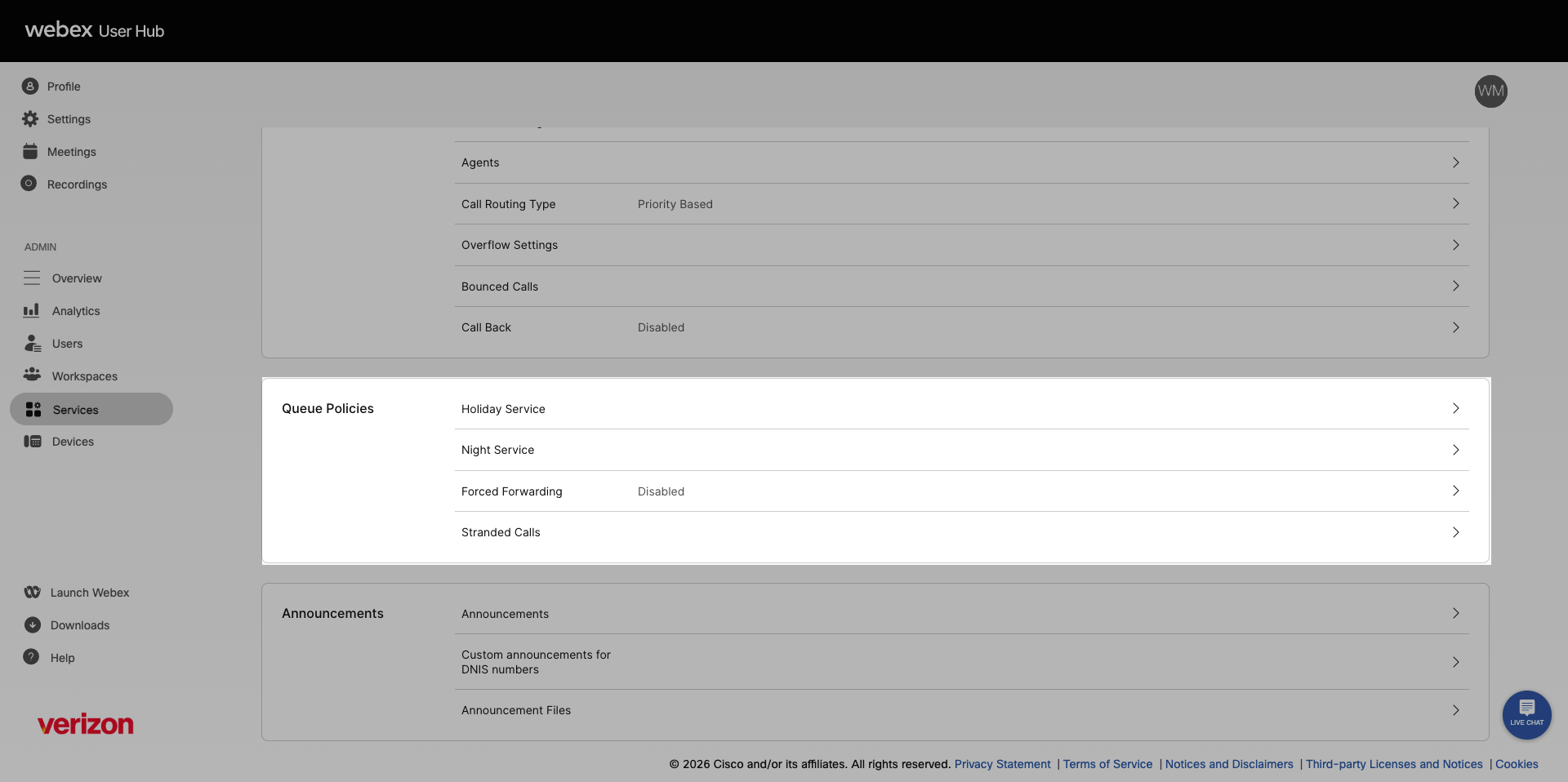
- In the Queue Policies section, select the policy you want to modify:
- Holiday Service — Configure the call queue to route calls differently during holidays.
- Night Service — Configure the call queue to route calls differently during non-business hours, based on a schedule that defines business hours.
- Forced Forwarding — Temporarily divert new incoming calls to a different route during an emergency, independent of night service and holiday service settings.
- Stranded Calls — Configure routing for calls stranded in the queue when all agents are signed out.
Edit call queue announcement settings
Call queue announcements are messages and music that callers hear while waiting in queue. You can manage your announcement settings for an existing call queue.
- Log in to User Hub and select Services from the left navigation.
- Select the Calling tab, then select Call Features.
- Select the Calling Queue tab.
- Select the call queue you want to edit.
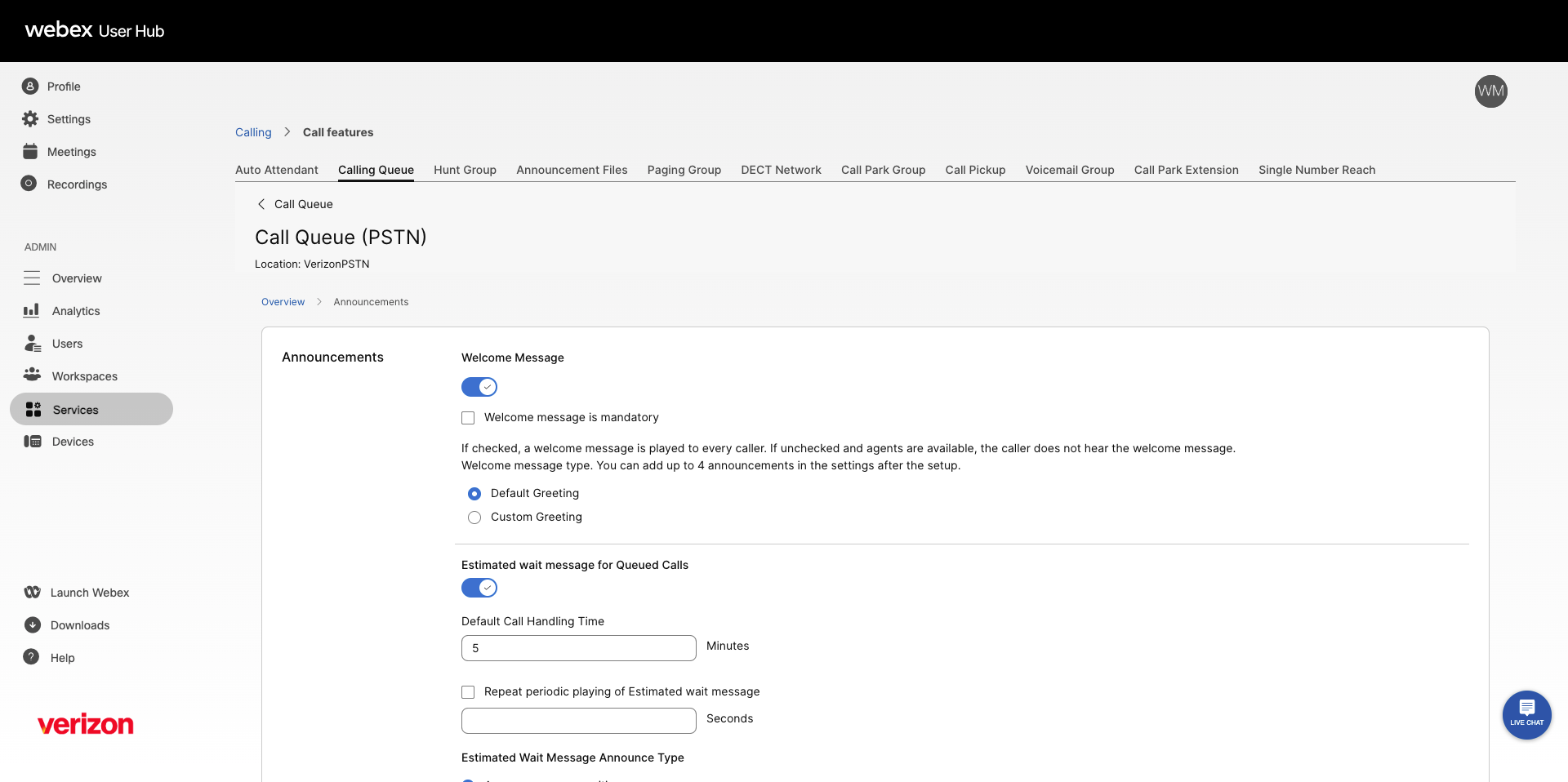
- In the Announcements section, select the arrow next to Announcements.
- Select the toggle next to any of the following to edit the announcement setting:
- Welcome Message — Plays when callers first reach the queue. Can be set as mandatory.
- Estimated Wait Message for Queued Calls — Notifies the caller of their estimated wait time or position in the queue.
- Comfort Message — Plays after the welcome message and before hold music.
- Comfort Message Bypass —Plays a shorter comfort message for calls that should be answered quickly. Set the duration in seconds.
- Hold Music — Plays after the comfort message in a repetitive loop.
- Call Whisper Message — Plays to the agent immediately before the incoming call is connected.
- Select Save.
Manage announcement files
Call queue announcements are messages and music that callers hear while waiting in queue. To manage your announcement files for an existing call queue, follow these steps:
- Log in to User Hub and select Services from the left navigation.
- Select the Calling tab, then select Call Features.
- Select the Calling Queue tab.
- Select the call queue you want to edit.
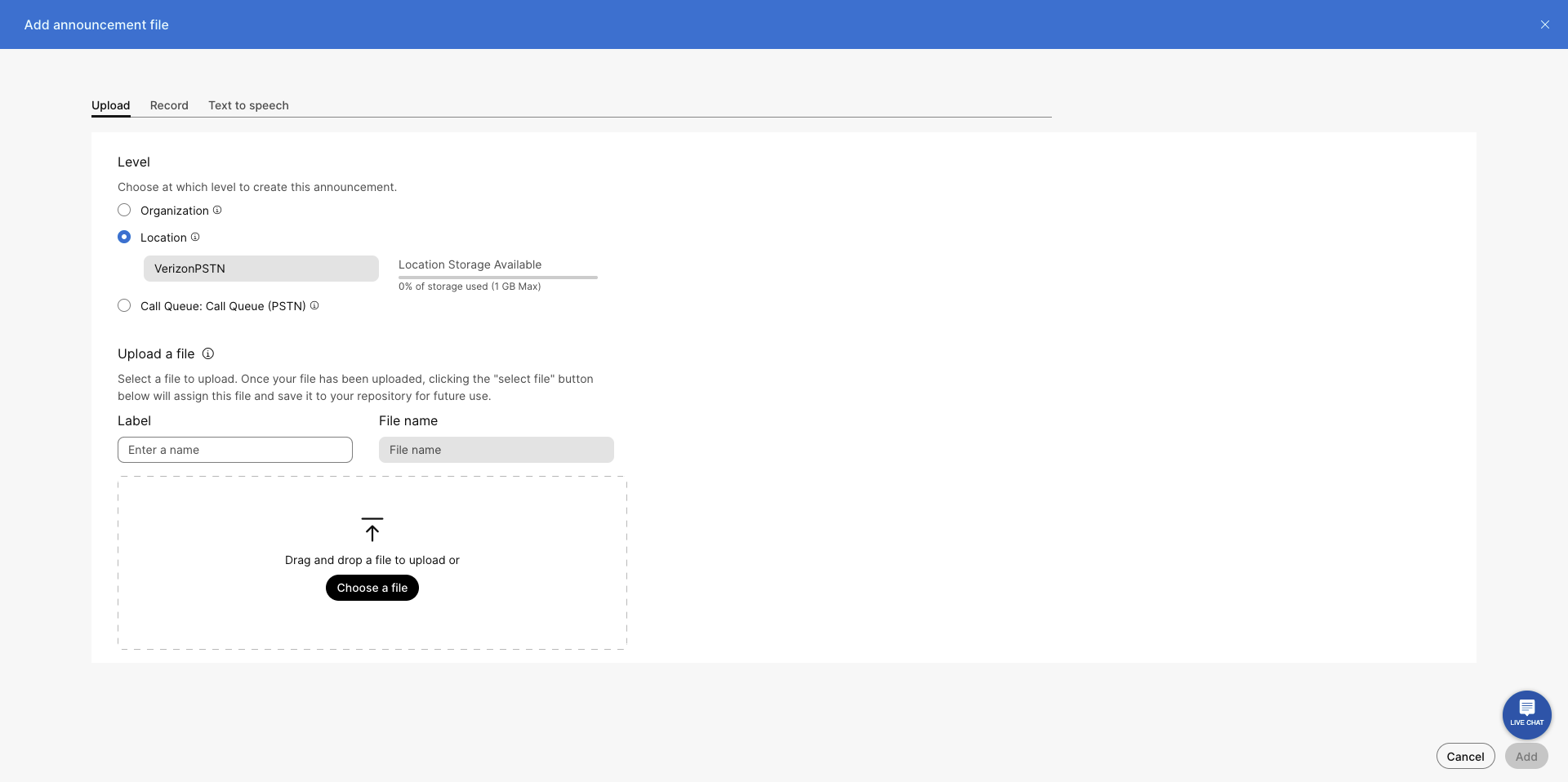
- In the Announcements section, select the arrow next to Announcement Files.
- Click Add file to upload an audio file from your computer, or select the Record tab to record your own announcement.
Manage call queue agents
Configure agent caller ID
For every Webex call, an agent receives a business Calling Line ID (CLID). The CLID can be either a call queue number or the agent's own phone number.
For every Webex call, an agent receives a business Calling Line ID (CLID). The CLID can be either a call queue number or the agent's own phone number.
- Log in to User Hub and select Users from the left navigation.
- Select the user you want to configure.
- Select Calling.
- Under Agent Settings, select Agent Caller ID.
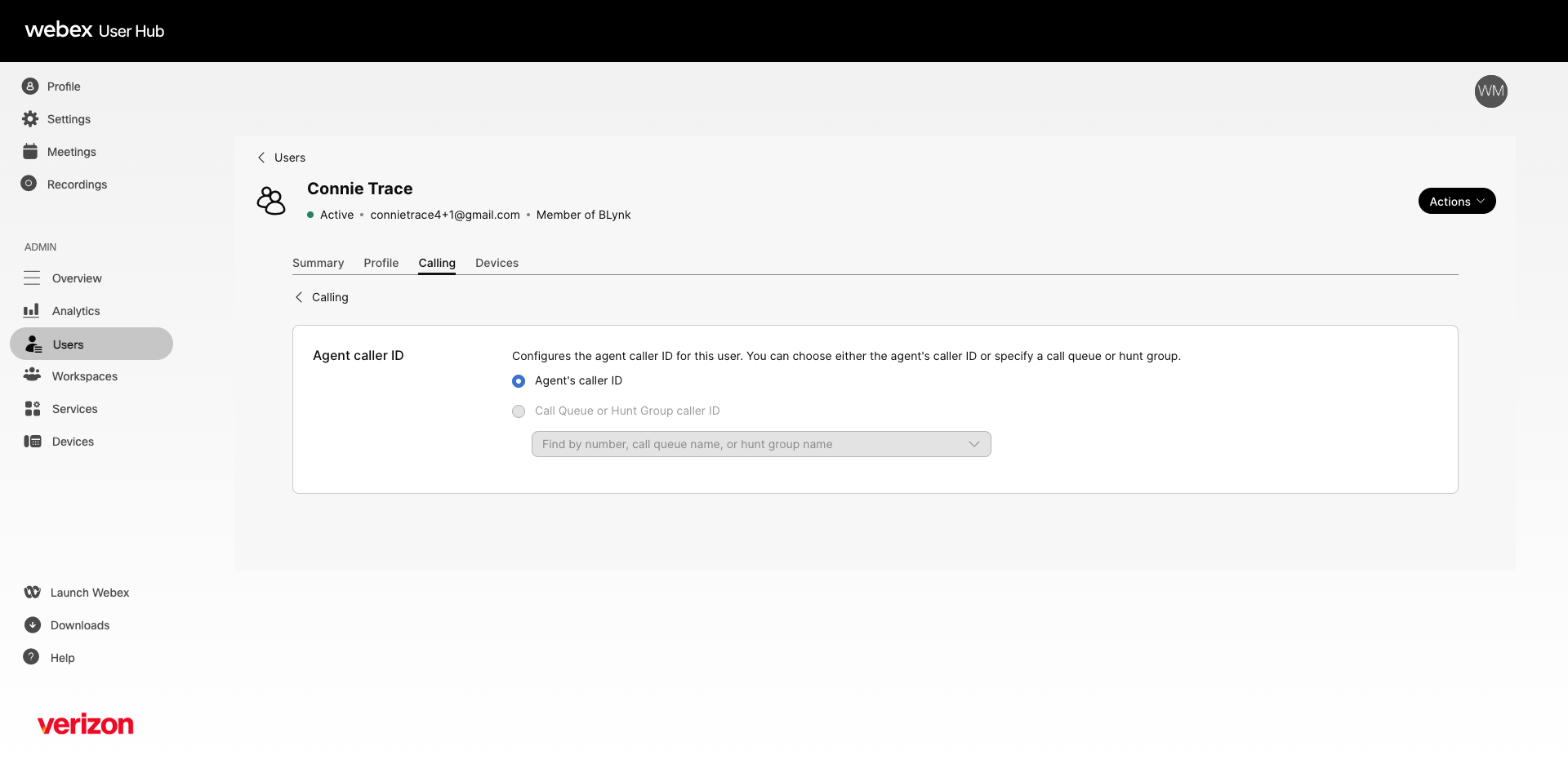
- Configure the agent caller ID:
- Agent’s Caller ID — The caller ID already configured for the agent.
- Call queue or hunt group caller ID — Search by number or queue name and select from the drop-down list.
Note: If the selected agent is not part of a call queue or hunt group, this option is disabled by default.
Add or delete agents
Users who receive calls from the queue are known as agents. You can add or delete users and workspaces from a call queue. Users and workspaces can be assigned to multiple call queues.
- Log in to User Hub and select Services from the left navigation.
- Select the Calling tab, then select Call Features.
- Select the Calling Queue tab.
- Select the call queue you want to edit.
- In the Overview section, select the arrow next to Agents.
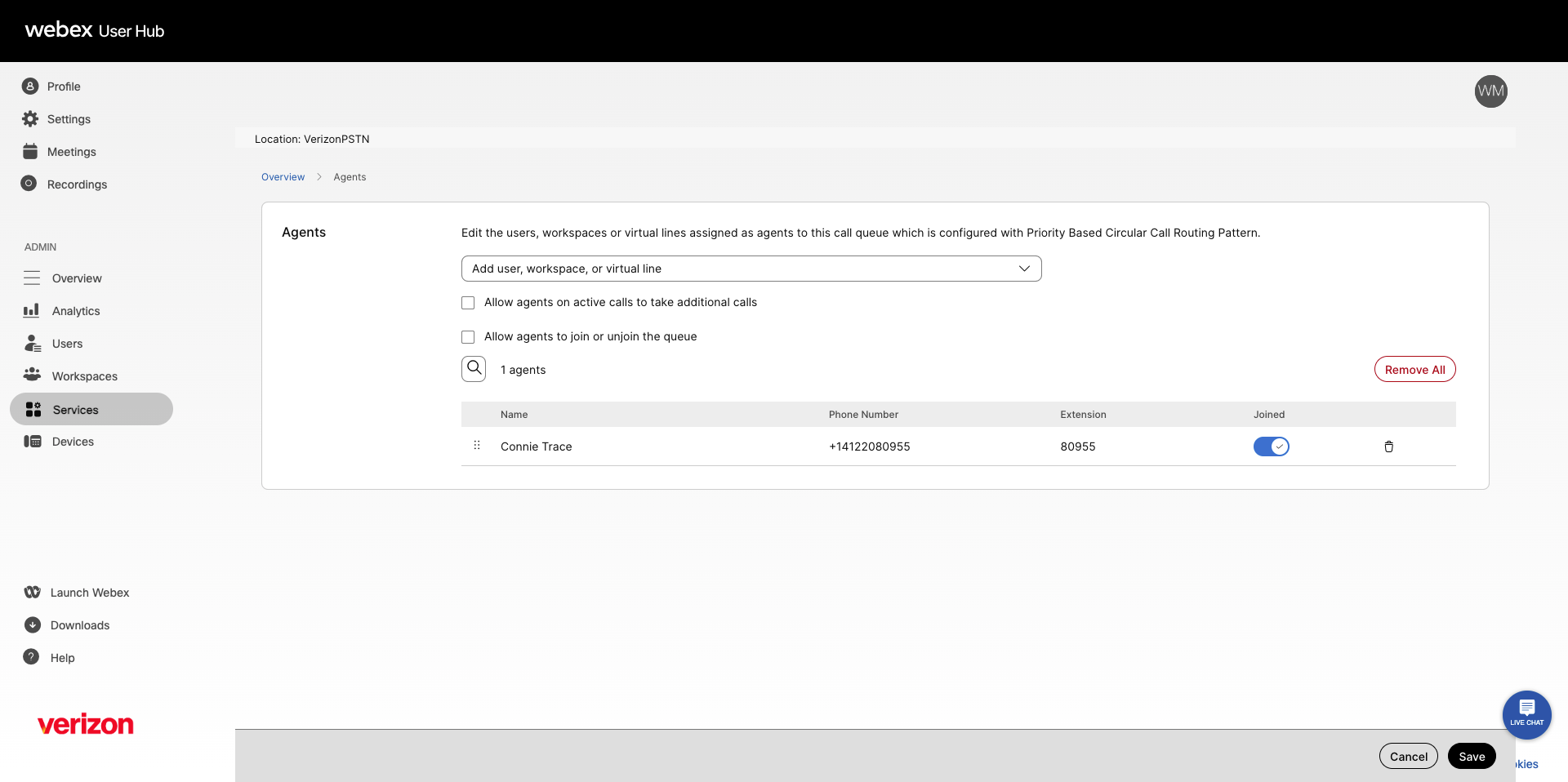
If using skill-based routing, select a default skill level from the Assigned Skill Level drop-down list. Note: Call routing is based on the agent's skill level. The highest skill level is 1 and the lowest is 20. - Use the search tool to add users, workspaces, or virtual lines.
- Select the following settings as applicable:
- Allow agents on active calls to take additional calls
- Allow agents to join or unjoin the queue
- In the agents table, make the following edits as applicable:
- Edit the skill level for agents if using skill-based routing.
- Use the toggle in the Joined column to join or unjoin agents.
- Select the trash icon next to a user or workspace to remove them from the queue.
- Select Save.
Note: All agents are added with a joined state of TRUE during queue creation. If an agent's joined state is set to FALSE, calls are not routed to that agent even if the agent is available.
View agent dashboard
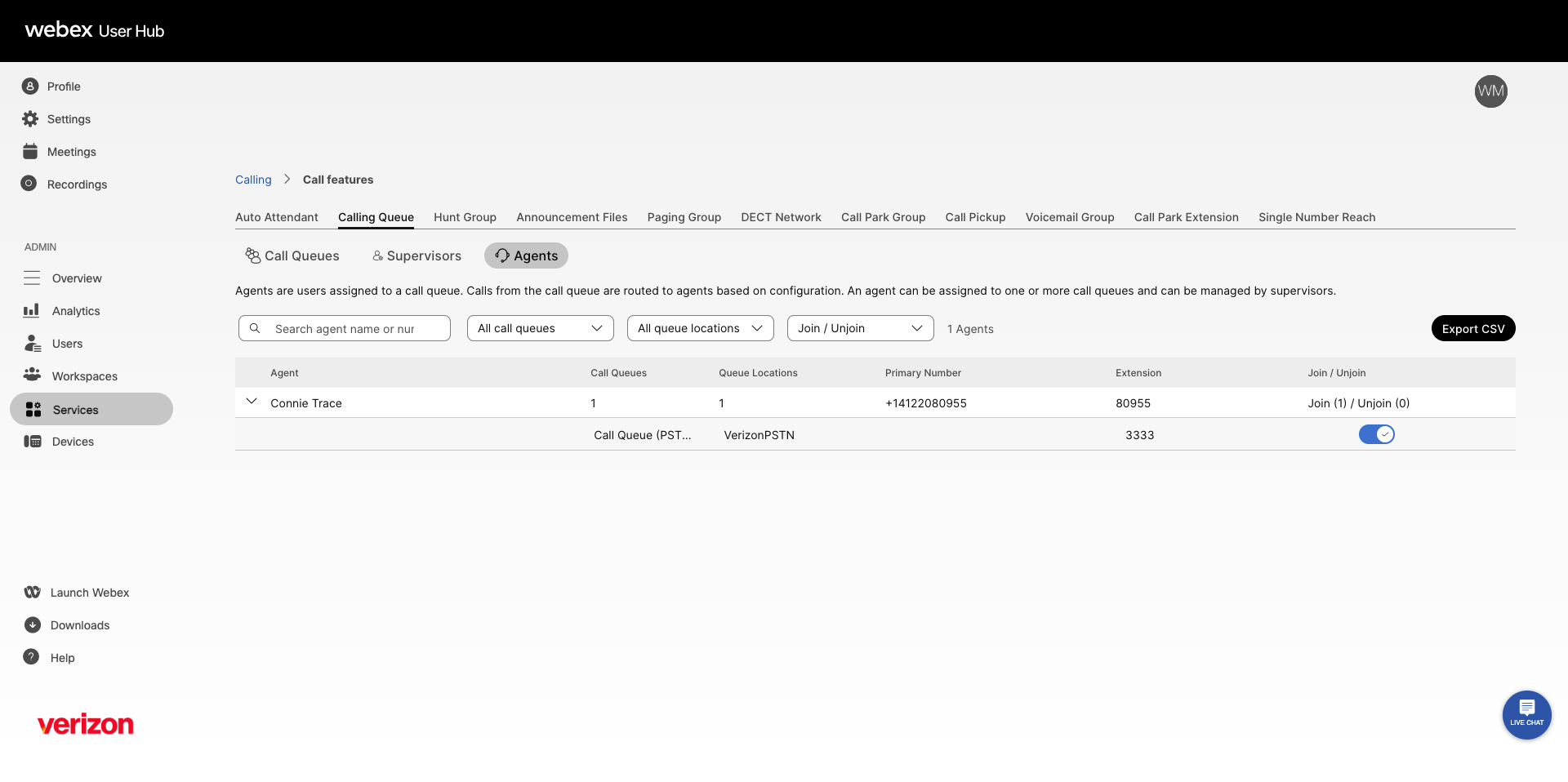
The agent dashboard gives administrators a unified view of all agents in call queues, including agent details and call queue participation.
- Log in to User Hub and select Services from the left navigation.
- Select the Calling tab, then select Call Features.
- Select the Calling Queue tab.
- Select the Agents tab. From here, you can:
- Filter the agent list by call queue, queue location, and join/unjoin status.
- Select the arrow to expand agent details.
- Toggle to join or unjoin an agent to a specific call queue.
- Select Export CSV to download a spreadsheet with agent details.
Manage call queue supervisors
Supervisors manage call queue agents and can monitor, coach, barge in, or take over calls that their assigned agents are currently handling.
To learn more about the supervisor functions available with your service, see this guide.
- Log in to User Hub and select Services from the left navigation.
- Select the Calling tab, then select Call Features.
- Select the Calling Queue tab.
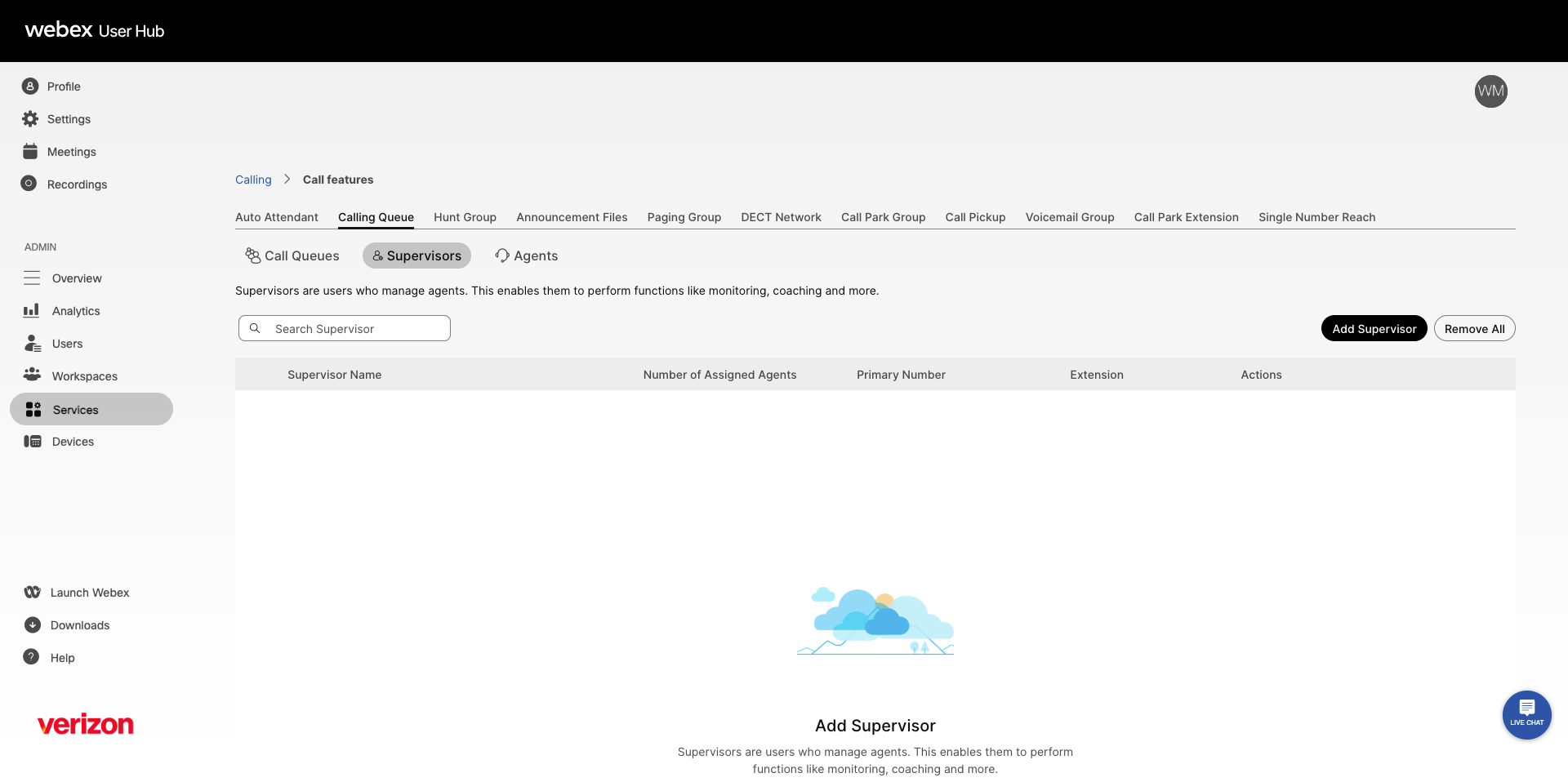
- Select the Supervisors tab to view the list of supervisors and their assigned agents.
Note: To view agents assigned to a supervisor, select the expand arrow next to the supervisor name. - To add a supervisor, select Add Supervisor. Once added, you can assign agents to the supervisor.
- To remove a supervisor, select the Remove supervisor icon next to the supervisor's name.