
Manage call park groups
The call park feature lets you temporarily place a call on hold by assigning it to either a specific user’s extension or a designated call park extension. While the call is parked, you're free to handle other incoming or outgoing calls and use additional phone features without any restrictions.
Two types of call park can be used:
- Call Park Direct - Park a call against a specific user's extension or call park extension.
- Call Park Group - Allows a defined group of users to park calls to available destinations within a configured call park group. These destinations can include member extensions or dedicated call park extensions.
Configure a call park group
When a call park group is enacted, the system automatically searches for the first available destination and parks the call there. Once parked, the user hears an announcement with the extension where the call was parked. Anyone can retrieve the call using the extension the call was parked.
To configure call park groups, follow these steps:
- Log in to User Hub.
- Under Admin, in the left menu, select Services > Calling > Call features.
- Find and select Call Park Group.
- If necessary, choose a Location from the dropdown and click OK.
- Click the Manage dropdown and select Add.
- Assign a Location and enter a Call Park Group Name. Click Next.
- Using the dropdown, Add agents in the desired routing order. Click Next.
- Search for and add park destinations where this group parks calls. Click Next.
- Set the Recall To destination. Click Next.
- Review that all information is correct and click Create.
- Exit the confirmation screen to view your call park group.

Add call park extensions
Up to 100 call park extensions can be manually added per location.
To add a call park extension, follow these steps:
- Log in to User Hub.
- Under Admin, in the left menu, select Services > Calling > Call features.
- Find and select Call Park Extension
- Click the Manage dropdown and select Add.
- Assign the location to add the call park extension.
- Enter the call park name and extension.
- Click Save.

Add a call park extension to a user’s line key
Administrators can assign call park extensions to the monitoring list for a user to seamlessly use a line to park and retrieve calls from a call park extension.
If the call park extension is not assigned to the user’s monitoring list, it can still be utilized by using the call park Feature Access Codes (FACs) to park and retrieve a call to and from this extension.
To enable a user to monitor a call park extension, follow these steps:
- Log in to User Hub.
- Under Admin, in the left menu, select Users.
- Find and select the user you’d like to monitor a call park extension.
- Select Calling.
- Scroll to Between-user permissions and select Monitoring.
- Here you can choose to add a call park extension for this user to monitor.
- When finished, select Save. Once this is added to a user, the user can now see this call park extension assigned to one of the available line keys on their device.

Feature operation (call park extension with an assigned line key)
When a user is set up to have a call park extension assigned as a line key, the user can simply park an active call by pressing the line key of the call park extension. Once parked, the user hears an announcement confirming that the call is parked. The line key where the call is parked flashes red and displays “Call parked” on the screen.
If multiple users try to park a call against the same extension, one is successful and the others fail. If this happens, the user hears the reorder tone. Choose a different line to park the call. To retrieve the parked call, the user simply presses the line key where the call is parked.
Call park direct
Initiate parking a call using call park direct in three different ways:
- Star Code
- Park soft key on Poly and Yealink Desk/Conference phones
- Call Park Option on Yealink Cordless Phones
To park a call using star codes:
- Put the active call on hold.
- Initiate a new call while the call is still on hold, then dial *68.
The call park feature asks where to park the call. - Perform the appropriate action:
- Press # to park against the extension the call is currently on.
- Enter the extension number of the user or the full 10-digit phone number to park the call against a different number.
The caller hears the normal hold music, and the call is placed on hold.
The call is no longer on the phone or the number the call was on.
Note: If a parked call does not get retrieved before the recall time, the call is recalled based on the settings set for recall. Recall settings are configured in the portal; refer to call park settings below.
To park a call using the park soft key on Poly / Yealink desk or conference phones:
- Put the active call on hold.
Note: Refer to call hold, pull, transfer, and conferencing for instructions on how to put the call on hold.
- Select the more soft key option.
- Select the park soft key option.
Note: When using the park soft key on Poly phones:
- Enter # on the call park page that asks for the number.
- Press the Enter soft key to dial *68 for call park.
- Examples of the Park soft key:
- Yealink T54W
- Yealink T54W

- Yealink T33G
- Yealink T33G
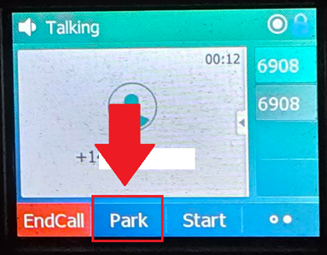
The Call Park feature asks where to park the call.
4. Perform the appropriate action:
- Press # to park against the extension the call is currently on.
- Enter the extension number of the user or the full 10-digit phone number to park the call against a different number.
The caller hears the normal hold music, and the call is placed on hold. The call is longer on the phone or the number the call was on.
Note: If a parked call does not get retrieved before the recall time, the call is recalled based on the settings set for recall. Recall settings are configured in the portal; refer to call park settings below.
Pick up a parked call
To pick up a parked call:
- Dial *88 from any phone.
The Call Park Pickup feature asks where to retrieve the parked call from. - Enter the extension number of the user or the full 10-digit phone number where the call was parked.
- Press #.
The call transfers to the phone that dialed *88 from.
Call park settings
Call park direct does not require any setup before you can park a call.
To configure the settings for call park:
- Sign in to User Hub.
- Click Services> Locations.
- Select the location that displays.
- Select Calling on the top.
- Navigate to the Calling features settings section.
- Select Call park settings.
- Configure the call park settings:
- Recall options for directed call parkAlert behavior
- Alert parking user only
- If a parked call is not picked up, the parked call is recalled back to the user who parked the call initially, after the recall timer has lapsed.
- If the parking user does not pick up the recalled call, and the Recall Timer lapses, the parking user is attempted again in 10 seconds.
- This process continues until the call is picked up or the caller hangs up.
- Alert parking user first, then hunt group
- Select the Hunt Group this setting applies to under Select Hunt Group.
- If a parked call is not picked up, it is reverted to the person who parked the call, after the Recall Timer has lapsed, based on the configured recall time.
- If the parking user does not pick up, the call is forwarded to the selected Hunt Group after the time setup on the Alert Hunt Group Wait Time setting has lapsed.
- The call then follows the Hunt Group routing and is not reverted.
- This option only works if the Hunt Group is configured.
- Alert hunt group only
- Select the Hunt Group this setting applies to under Select Hunt Group.
- If a parked call is not picked up after the Recall Timer has lapsed, the call is forwarded to the selected Hunt Group.
- The call then follows the Hunt Group routing and cannot be reverted.
- This option only works if the Hunt Group is configured.
- Alert parking user only
- Recall options for directed call parkAlert behavior
- Settings for call park and call park groups
- Ring Pattern
- Selects the ring pattern for the reverted parked call to have a distinctive ring to differentiate it from other types of calls.
- Normal
- Long-Long
- Short-Short-Long
- Short-Long-Short
- Selects the ring pattern for the reverted parked call to have a distinctive ring to differentiate it from other types of calls.
- Recall Timer
- Sets the time, in seconds, that a parked call remains parked before it is reverted to the parking user.
- This setting is for all 3 recall options:
- Alert parking user only
- Alert parking user first, then Hunt Group
- Recall Timer is initially used to recall the user.
- Alert Hunt Group down
- Alert Hunt Group Wait Time
- Sets the time, in seconds, that a parked call remains parked before it is reverted to the Hunt Group after the parking user has first alerted.
- This option is only for the Alert parking user first, then Hunt Group setting.
- Sets the time, in seconds, that a parked call remains parked before it is reverted to the Hunt Group after the parking user has first alerted.
- Ring Pattern
- Click Save.

