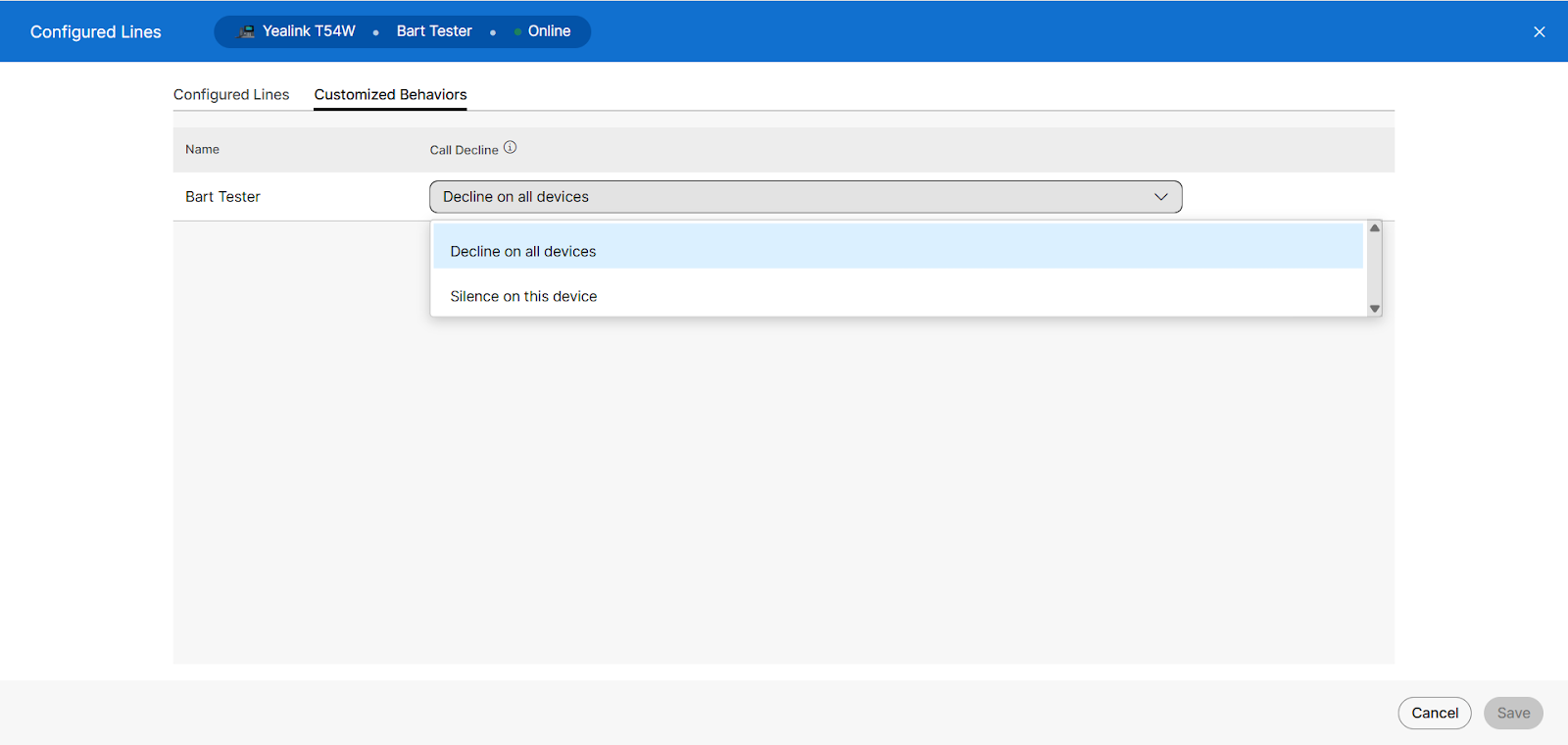
Call decline
Admins can change the default behavior on IP phones and Webex apps.
The default setting for the call decline behavior:
Primary devices
- Stops the call from ringing on all users’ devices for that line to send the call to voicemail or the Call Forwarding Busy (CFB) destination.
- If voicemail and CFB are turned off, the call goes to a busy signal.
Shared (SCA) devices
- Stops the call from ringing only on that device for that line, but rings on other devices.
Configure call decline behavior
To configure call decline behavior:
- Log in to User Hub.
- Click Devices.
- Select the device being managed.
- Click Configure Lines.
- Select Customized Behaviors.
Note: Under the Call Decline column, each user assigned to the device can be customized in the following way:- Decline for all lines - Stops the call from ringing on all users’ devices for that line.
- Silence for this line - Stops the call from ringing only on that device for that line.
- Click Save.
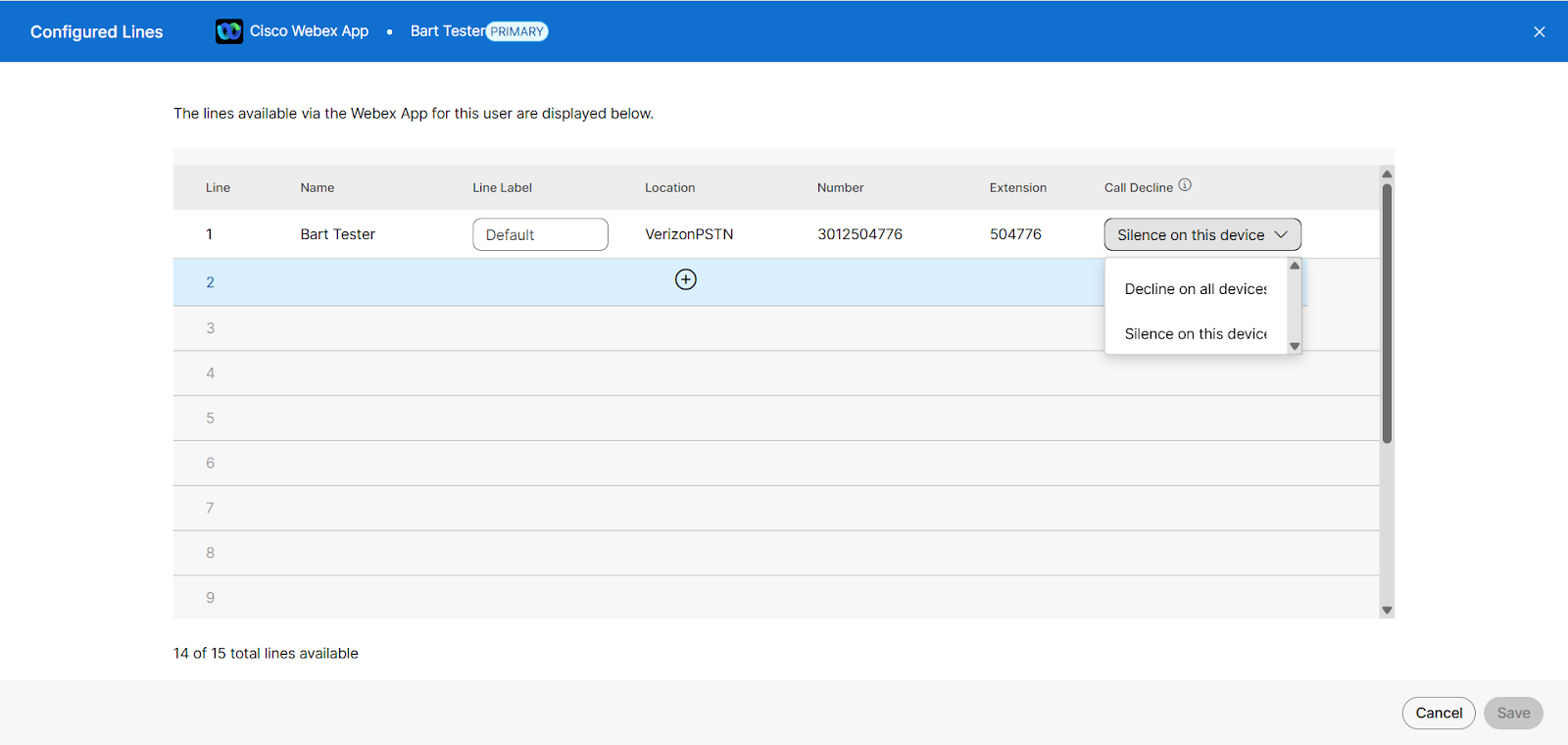
To configure call decline behavior on Webex App:
- Log in to User Hub.
- Click Users.
- Select the user being managed.
- Click Calling.
- Select Application line assignment under the User call experience section.
- Select Configure Lines under the Configure additional lines on the Webex App section.
Note: Under the Call Decline column, each user assigned to the device can be customized in the following way:
- Decline for all lines - Stops the call from ringing on all users’ devices for that line.
- Silence for this line - Stops the call from ringing only on that device for that line.
Under Line Label, you can add labels to each user that displays in the app.
- Click Save.